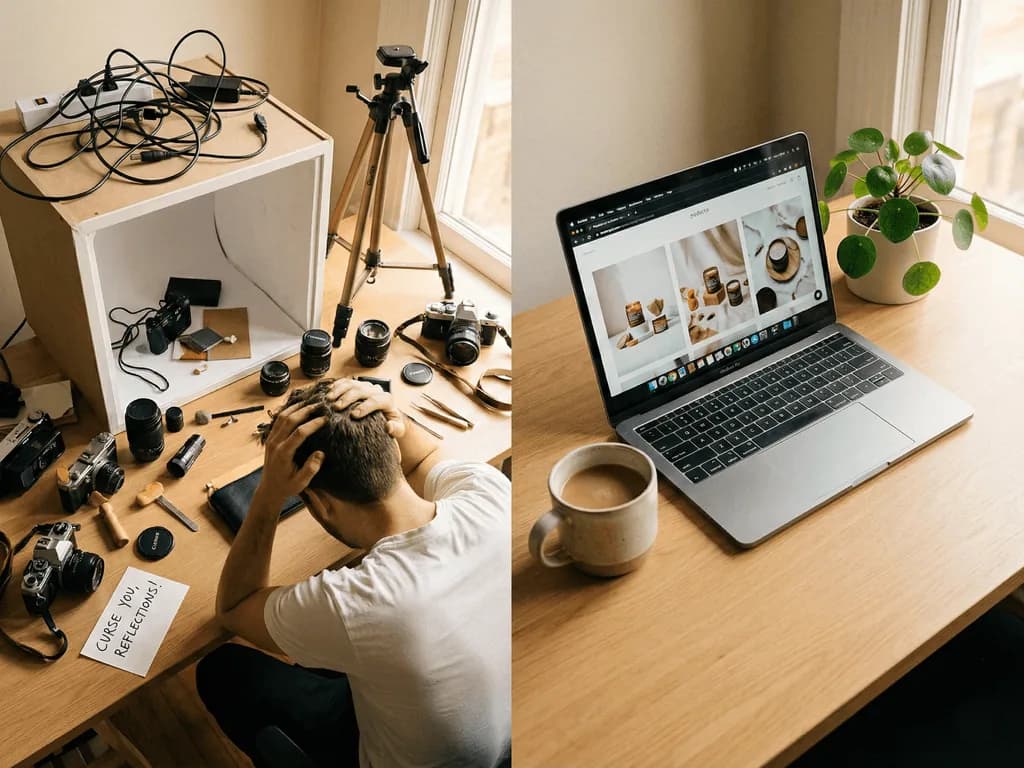
iPhone Product Photography That Makes Small Brands Look Ready to Buy From
A phone camera is not the reason most product photos lose sales. The real problem is shaky light, cluttered backgrounds, weak framing, and a workflow that forces every new SKU to start from zero. This guide shows how to capture a clean iPhone source photo, avoid the mistakes that make products look cheap, and use Smart Presets to turn that shot into listing-ready visuals without prompt writing.
Can an iPhone Take Good Product Photos for Ecommerce?
Yes. An iPhone can produce strong ecommerce product photos when the setup is controlled. The camera is rarely the first bottleneck for small brands. Light direction, stability, background choice, focus, and consistency usually matter more than buying a DSLR. Shopify's own product photography guidance notes that sellers can use a smartphone, and that professional-looking photos come from lighting, exposure, styling, and post-processing decisions.
That is good news, but it is also where many sellers get stuck. A phone makes capture easy, so it also makes inconsistency easy. One product gets photographed beside a window at noon, another under warm kitchen lights at night, and another on a desk with a busy background. Each image may look acceptable alone, but the store starts to feel improvised when customers see the full catalog.
The commercial goal is not to make a phone photo look like an art project. It is to make the product easy to understand, trustworthy, and consistent enough that buyers do not hesitate. The first image should answer "what is this?" quickly. Supporting images should answer "how does it feel, fit, scale, or fit into my life?" A good iPhone workflow gives you clean source images for both jobs.
Think of the phone as your capture tool, not the entire studio. Use it to record the product truth: accurate shape, readable details, clean edges, and believable color. Then use editing or AI presets for the repeatable production work that would otherwise consume hours.
What iPhone Settings Create the Cleanest Source Image?
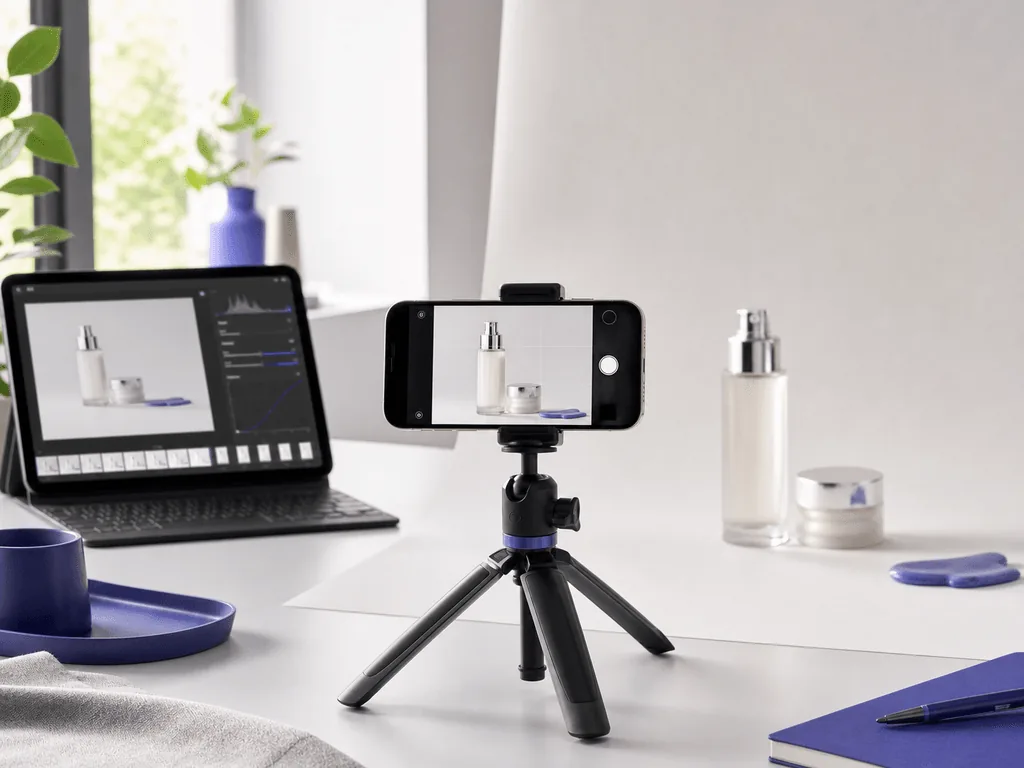
Start by cleaning the lens. It sounds basic, but a fingerprinted phone lens adds haze and lowers contrast before you do anything else. Turn off flash for most product photos because direct phone flash creates harsh glare, hard shadows, and an amateur look. Use the rear camera, tap the product to set focus, and lower exposure slightly if bright packaging or white backgrounds are blowing out.
Keep the camera steady. A small tripod, phone stand, or even a stable stack of books reduces blur and keeps the angle repeatable across multiple SKUs. This matters because consistency is a trust signal. If every product is photographed from a different height and distance, the catalog feels harder to compare.
Avoid portrait mode for main listing images unless you know exactly why you need it. Background blur can look attractive, but it may also soften edges, hide product details, and make marketplace cropping harder. For clean ecommerce source photos, sharp edges are usually more valuable than artificial depth.
Use the highest quality file your workflow allows and avoid sending images through apps that compress them heavily before editing. You want enough detail for zoom, cropping, and background generation. The better your source file, the less the editing process has to guess. That protects labels, material texture, and product geometry, which are the parts buyers use to decide whether the product feels real.
How Should You Light Products With Only a Phone and a Window?
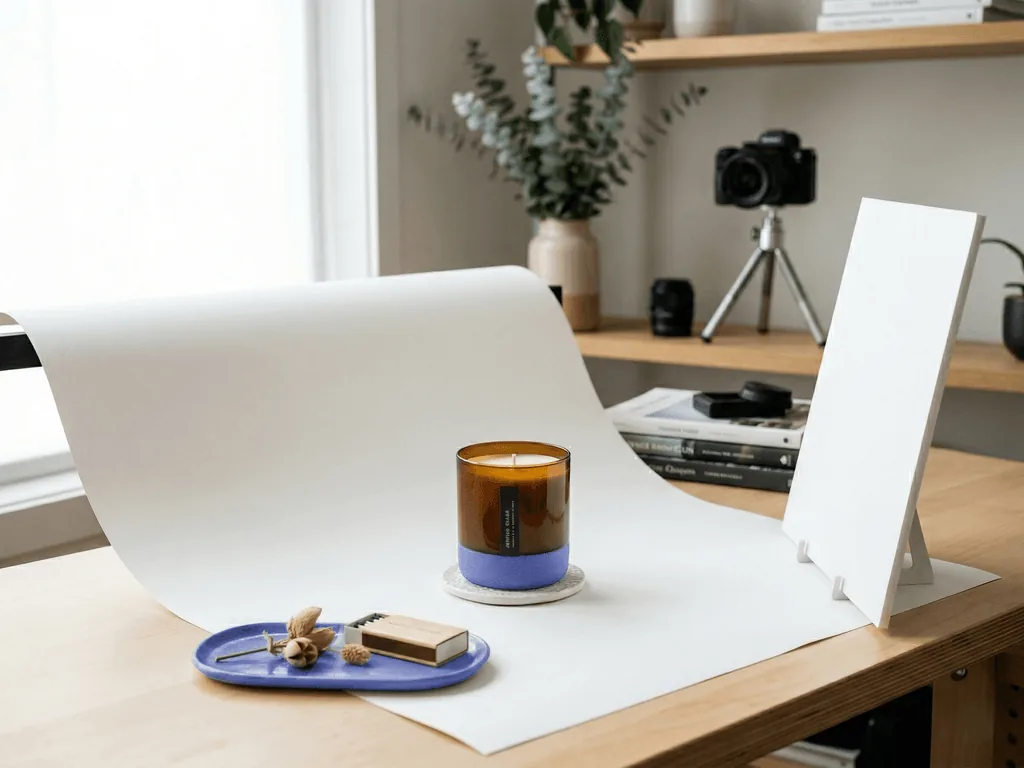
Use one large, soft source of light. For most sellers, that means a bright window with indirect daylight. Place the product near the window and angle it so light reaches the front and side, not straight from the camera. This creates enough shadow to show shape while keeping the product easy to read. If the shadow side gets too dark, place a white foam board, printer paper, or poster board opposite the window to bounce light back into the product.
Turn off mixed indoor lights. Warm ceiling bulbs combined with cool daylight create color shifts that are hard to correct later. Mixed light can make a white label look yellow in one area and blue in another. Buyers may not diagnose the issue, but they will feel that the image is less professional.
Control reflections before you shoot. Shiny packaging, glass, jewelry, and electronics will reflect the room around them. Move clutter away, use a larger white card to create cleaner reflections, and change the product angle until hotspots become soft gradients instead of bright patches. A good iPhone shot often comes from small adjustments, not expensive gear.
The goal is a source photo that AI can understand clearly. Soft light, visible edges, and readable details give Pixora's Smart Presets a better starting point. A chaotic, underexposed, or glare-heavy image forces every tool to work harder and increases the risk of unnatural results.
Which Background and Framing Choices Work Best?
For your first product image, choose clarity over personality. A white or neutral background keeps attention on the product and gives you more flexibility later. Amazon-style main images often require a pure white background, while Shopify and Etsy stores can use more warmth and lifestyle context in supporting images. The mistake is trying to make the very first image do every job at once.
Frame the product with enough space for cropping. Marketplaces, social platforms, and ad placements all crop differently. If your phone shot is too tight, you may lose handles, corners, labels, or important edges when the image becomes a thumbnail. Leave controlled negative space around the product so you can resize without damaging the composition.
Use a simple angle system. Front view, 45-degree view, side view, top view, scale view, and detail close-up will serve most ecommerce products better than random creative angles. Buyers need to compare shape, size, texture, and use case. Your gallery should reduce doubt in a sequence, not simply show that you took many photos.
Keep props secondary. A prop should explain scale, use, or mood. It should not compete with the product. If the product is handmade, warm textures can help. If it is technical, clean surfaces and sharp alignment usually work better. The stronger your source framing is, the easier it becomes to generate polished white-background, lifestyle, or social variations from the same base.
Before-After-Bridge: From Phone Snapshot to Storefront System
Before: a founder launches ten products with phone photos taken whenever there is a free hour. Some images are shot in daylight, others at night. The backgrounds change, the crop changes, and the lighting changes. The products are real and the offer may be strong, but the storefront sends a quiet warning: this brand is still figuring things out. Every uncertain image makes the buyer work harder, and buyers do not reward extra work.
After: the same founder builds a repeatable phone workflow. Every product gets one clean hero source image near the same window, from the same camera height, with the same neutral background. Then each SKU gets a small set of supporting images: one detail crop, one scale or use image, and one styled visual for ads or social. The catalog starts to feel intentional. Products are easier to compare. The brand looks like it has a real visual system.
Bridge: the change does not require a studio day. It requires a better capture routine and a faster way to turn good inputs into finished outputs. Pixora fits this bridge because Smart Presets remove the need to rebuild lighting, backgrounds, and scene direction for every SKU. The phone captures product truth. Presets handle the repetitive polish.
That transformation matters emotionally as much as commercially. A small brand owner stops feeling exposed by homemade visuals and starts seeing a storefront that looks like the business they have been trying to build. Cleaner photos do not just decorate the page. They make the brand feel safer to buy from.
How Can Pixora Turn One iPhone Shot Into Marketplace-Ready Visuals?
Pixora is not a reason to ignore source quality. It is a way to multiply the value of a source photo that is already clean, sharp, and honest. Upload a good iPhone image, choose a Smart Preset, and let the preset apply the kind of scene, lighting, and background logic that normally takes manual editing or a physical reshoot.
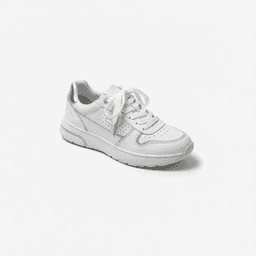
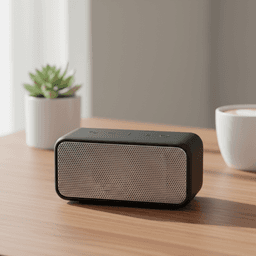
Use Fashion E-commerce Studio: Clean White Background when you need a clean catalog hero image for apparel, bags, or other fashion products. Use Accessory Still Life: Aesthetic Display when the product is ready for a premium secondary image with more mood and styling. Use Tech Lifestyle: Modern Context when electronics need a more believable environment for ads, social posts, or supporting product-page visuals. These are not generic prompt boxes. They are product-photo workflows packaged as presets.
A practical production system looks like this: shoot every new SKU once with controlled phone lighting, create the clean listing image first, then generate two or three supporting variations for different channels. One image can serve the product page. Another can support an Etsy-style or Shopify lifestyle gallery. Another can become a social or ad creative. The source stays consistent, while the outputs adapt to channel needs.
This is where AI saves real time. You stop losing hours to repeated setup changes, background experiments, and prompt guessing. You keep the phone workflow simple, then use Pixora for the commercial finishing work that makes the product look ready to sell.
Where Phone Product Photos Usually Fail
Mixed lighting makes colors shift and weakens buyer confidence
Handheld shots create blur and inconsistent angles across the catalog
Busy backgrounds make products harder to read in thumbnails
Every new channel requires another crop, background, or reshoot
Phone Workflow Benchmarks
1
Clean source photo can become multiple channel-specific visuals when the input is sharp and well lit
45°
A useful starting angle for window light that gives products shape without harsh shadows
90%
Potential cost reduction when AI variations replace repeated traditional product photo reshoots
Turn a Clean Phone Shot Into Finished Product Visuals
Upload one sharp iPhone photo, choose a Smart Preset, and create clean listing images or styled secondary visuals without learning prompt engineering.
Use indirect window light, a stable phone position, clean lens, neutral background, and enough space around the product for cropping.
A sharp source image with clear edges, readable details, and honest product geometry.
02
Build a Repeatable Gallery
Shoot a hero view, a 45-degree view, a detail close-up, and a scale or use-case image before changing the setup.
A buyer-friendly product page that answers questions instead of just looking decorative.
03
Generate Channel-Specific Variations
Use Smart Presets to create clean marketplace images, lifestyle visuals, and social-ready scenes from the best source shots.
More finished assets from fewer reshoots and less manual editing.
iPhone Product Photography Checklist
The lens is clean and the phone is stable before shooting
Flash and mixed room lights are off unless there is a specific reason
The product is lit by one soft direction with a simple bounce card if needed
The background is neutral enough for clean edits and marketplace use
There is enough space around the product for square, vertical, and ad crops
What Gets Better With a Phone-First System
New SKUs can launch faster because capture decisions are already defined
The catalog looks more consistent even without a physical studio
Product details stay clearer in thumbnails and zoom views
Lifestyle and ad visuals become easier to create from the same source image
Small brands look more established before buyers read a single review
Share this article
Make Your Next Phone Photo Work Harder
Stop losing sales to improvised product images. Capture one clean iPhone shot, choose a Smart Preset, and create polished ecommerce visuals in minutes.
Yes. A modern iPhone can create professional-looking ecommerce source photos when the lighting, framing, focus, and background are controlled. The setup usually matters more than the camera price.
Use it carefully. Portrait mode can create attractive background blur, but it may soften product edges or hide details. For main listing images, a sharp standard photo is usually safer.
Indirect window light is the easiest starting point. Put the product near the window, light it from the front-side, and use white paper or foam board to bounce light into dark shadows.
Keep the same camera height, distance, background, and light direction for each SKU. A small tripod or stand helps you repeat the same angle instead of recreating it by hand.
Pixora works best when the phone photo is already sharp, well lit, and product-accurate. Smart Presets can then create clean white-background shots, lifestyle scenes, and social visuals without requiring prompt writing.
Start with Fashion E-commerce Studio: Clean White Background for clean catalog shots, Accessory Still Life: Aesthetic Display for premium supporting visuals, and Tech Lifestyle: Modern Context for electronics and ad-friendly scenes.