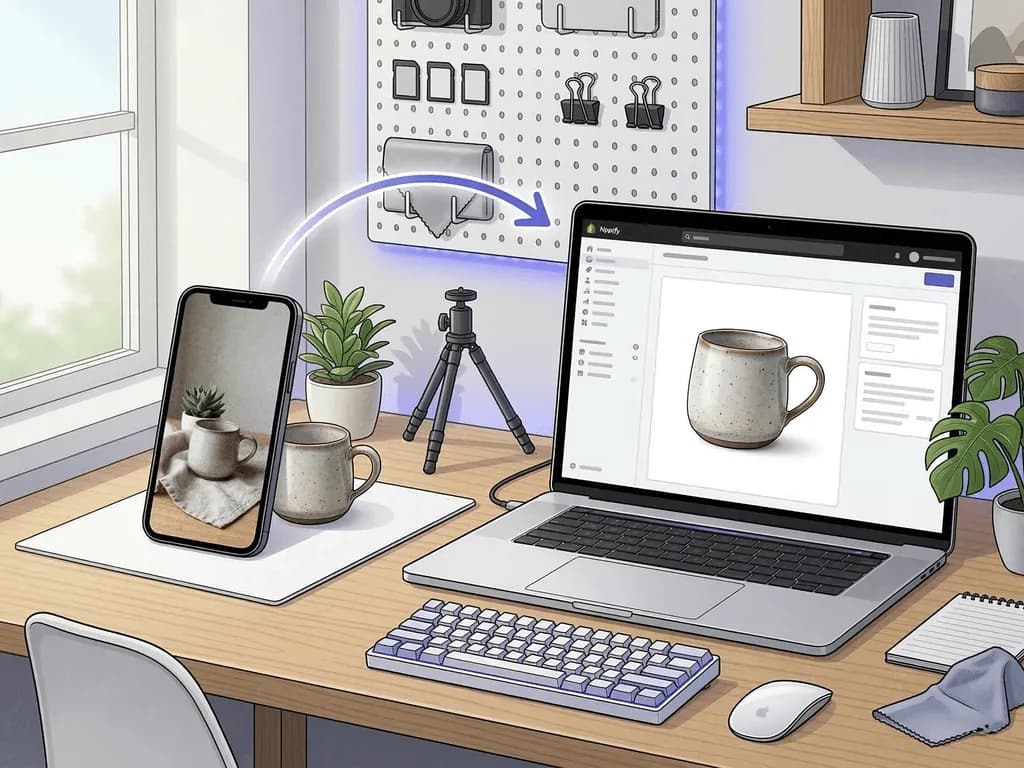
Bulanık ve Tutarsız Ürün Görselleri Yüzünden Shopify Satışı Kaybetmeyin
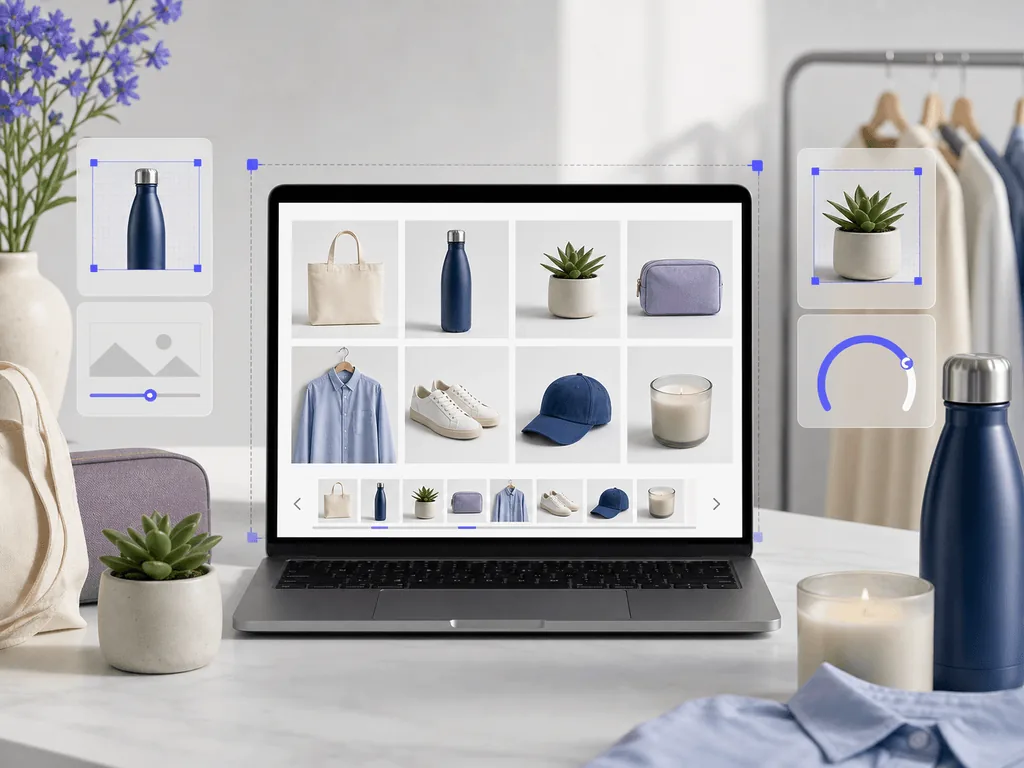
Shopify ürün görseli boyutu yalnızca teknik bir ayar değildir. Fotoğraflarınız çok küçük, çok ağır veya görsel olarak tutarsızsa müşteriler teklifi okumadan önce tereddüt eder. Bu rehber, mağazanızın daha hızlı güvenilir görünmesini sağlayan ölçüleri, kırpma mantığını, galeri yapısını ve AI iş akışını gösterir.
Çoğu Shopify ürün fotoğrafı için en güvenli başlangıç noktası 2048 x 2048 piksel civarında yüksek çözünürlüklü kare ana görseldir. Shopify, ürün ve koleksiyon görsellerinde 5000 x 5000 piksele ya da 25 megapiksele kadar dosyaları destekler ve dosyanın 20 MB altında olmasını ister. Yardım dokümantasyonu, kare ürün görsellerinde 2048 x 2048 pikselin genellikle iyi görüntülendiğini belirtir. Bu, müşterinin zoom yaparken yeterli detay görmesini sağlar ve temiz web dışa aktarımları için alan bırakır.
Daha derin kural şudur: Boyut, ancak katalog tutarlıysa işe yarar. 2048 piksellik keskin bir görsel bile bir SKU çok dar kırpılmış, diğeri kadrajda fazla boşluk bırakmış, üçüncüsü farklı arka plan rengi kullanmışsa amatör görünür. Shopify temaları görselleri ekranda yeniden boyutlandırabilir, ancak dağınık bir görsel sistemi düzeltemez.
Her ürün için ana dosya saklayın, ardından vitrin için optimize edilmiş sürümler dışa aktarın. Ana dosya gelecekteki kırpmalar, reklamlar, pazaryerleri ve sezonluk yenilemeler için detayı korur. Web dışa aktarımı ise ürün sayfasını hızlı tutar. Böylece hem alıcı güveni oluşturan çözünürlüğe hem de mobil müşterileri bekletmeyen hıza sahip olursunuz.
Çoğu marka için kare ilk görsel, tutarlı ürün ölçeği ve tekrarlanabilir galeri sırası ile başlayın. Yalnızca uzun şişeler, mobilyalar veya geniş setler gibi ürün formu gerektiriyorsa ayarlama yapın.
Görsel Boyutu Hataları Neden Dönüşüm Kaybettirir?
Görsel boyutu hataları şüphe yaratır. Bulanık zoom görünümü müşteriye mağazanın profesyonel olmayabileceğini düşündürür. Yavaş yüklenen görsel, satın alma deneyiminin de özensiz olabileceği hissini verir. Parçalı görünen koleksiyon sayfası markayı olduğundan küçük gösterir. Bu sorunların hiçbiri kendini doğrudan dönüşüm problemi olarak tanıtmaz, ancak müşteriler hemen tepki verir.
Shopify'da ürün fotoğrafları, pazaryeri şablonlarının paylaştığı güven yükünü tek başına taşır. Ürün sayfanız müşterinin ürüne dokunamadığı ortamda kaliteyi, malzemeyi, ölçeği ve zevki kanıtlamalıdır. Hero görsel yumuşaksa veya katalogdaki diğer görsellerden farklı kırpılmışsa müşteri ne satın aldığını anlamak için daha fazla çaba harcar.
Bu ekstra zihinsel çaba pahalıdır. Tereddüdü artırır, algılanan değeri düşürür ve fiyat itirazlarını güçlendirir. Temiz bir görsel sistemi tersini yapar. Müşterinin ürünü hızlı anlamasına, varyantları güvenle karşılaştırmasına ve fotoğrafın bir kusur saklayıp saklamadığını düşünmeden sahipliği hayal etmesine yardım eder.
Bu yüzden görsel boyutu tek seferlik bir yükleme kuralı gibi ele alınmamalıdır. Bir dönüşüm iş akışının parçasıdır. Amaç yalnızca geçerli dosya yüklemek değildir. Amaç, her görselin belirsizliği azalttığı hızlı, net ve tutarlı ürün sayfası yayınlamaktır.
Shopify Ürün Görselleri Nasıl Kırpılmalı?
Yaratıcı stilden önce tutarlı bir kırpma sistemi kurun. Çoğu katalog gridinde kare kırpma en temiz başlangıçtır çünkü ürünler koleksiyon sayfalarında, önerilerde ve mobil düzenlerde düzgün hizalanır. Ürünü ortalayın, kenarlarda yeterli nefes alanı bırakın ve benzer SKU'lar arasında aynı görsel ölçeği koruyun.
İlk görsel ürünü tek bakışta açıklamalıdır. Küçük görselde okumayı zorlaştıran aksesuarlar, dramatik açılar veya yaşam tarzı detaylarından kaçının. Bir müşteri ürünü koleksiyon sayfası boyutunda anlayamıyorsa görsel yanlış anda fazla iş istiyor demektir.
İkinci görseller daha spesifik olabilir. Doku, dikiş, yüzey, içerik, bağlantı noktası veya malzeme detayı için yakın kırpma kullanın. Bağlam, ölçek ve yaşam tarzı sahneleri için daha geniş kırpmalar kullanın. Anahtar nokta, görseli oluşturmadan önce görevini belirlemektir. Detay kırpması kaliteyi kanıtlamalıdır. Yaşam tarzı kırpması istek yaratmalıdır. Temiz hero kırpması anında anlaşılabilirlik sağlamalıdır.
Uzun ürünler ekstra dikkat ister. Bir şişeyi veya lambayı kare içinde zayıf görünecek kadar küçültmeyin. Bunun yerine tutarlılık için kare ana görseli koruyun ve galeri derinliği, reklamlar ve sosyal yerleşimler için ek dikey veya yaşam tarzı kareleri oluşturun. Shopify esneklik sağlar, ancak görsel kurallarınız öngörülebilir kalmalıdır.
Hangi Dosya Formatı ve Sıkıştırma Kullanılmalı?
Oluşturabileceğiniz en iyi kaynak görselle başlayın, sonra kanala göre sıkıştırın. Shopify PNG, JPEG, GIF, SVG, HEIC ve WebP dahil yaygın görsel formatlarını kabul eder ve görselleri kendi görüntü sistemi üzerinden sunar. Pratikte JPEG ve WebP fotoğrafik ürün görselleri için genellikle güçlü seçeneklerdir çünkü kalite ile dosya boyutu arasında denge kurar. PNG ise şeffaflık veya keskin grafik kenarları gerektiğinde daha uygundur.
Ürün fotoğrafınızın tek kopyasını sıkıştırmayın. Temiz ana dosyayı saklayın ve vitrin sürümlerini ondan dışa aktarın. Bu önemlidir çünkü ürün görselleri ana sayfa bölümlerinde, koleksiyon gridlerinde, ücretli reklamlarda, e-posta kampanyalarında, pazaryeri listelerinde ve sezonluk açılış sayfalarında tekrar kullanılır. Tek dosyanız zaten aşırı sıkıştırılmışsa gelecekteki her kullanım daha zayıf bir varlıkla başlar.
Web dışa aktarımlarında görseli gerçek ürün sayfası ve zoom boyutunda kontrol edin. Dosya hızlı yüklenmeli, ancak etiketler, dokular, kenarlar ve önemli ürün detayları hâlâ net hissettirmelidir. Aşırı sıkıştırma çoğu zaman önce geçişlerde, gölgelerde, kumaş dokusunda ve yansıtıcı yüzeylerde belli olur.
Basit kural iyi çalışır: Ana dosyayı koruyun, yayınlanan dosyayı optimize edin ve lansmandan önce mobilde inceleyin. Yavaş yükleme ve yumuşak detayların mağazayı en hızlı cezalandırdığı yer mobildir.
Her Shopify Ürün Sayfasında Hangi Görsel Karışımı Olmalı?
Güçlü bir Shopify galerisi genelde on rastgele görsele değil, dört ila altı amaçlı görsele ihtiyaç duyar. Ürünü açıkça gösteren temiz bir ilk görselle başlayın. Şekli doğrulayan alternatif açıyla devam edin. Malzeme, doku, yüzey veya premium özelliği kanıtlayan bir veya iki yakın plan ekleyin. Sonra müşterinin ürünü gerçek kullanımda hayal etmesine yardım eden bir yaşam tarzı görseli kullanın.
Bu sıra önemlidir çünkü müşteriler netlikten güvene, güvenden isteğe geçer. Netlikten önce atmosferle başlarsanız ürün kafa karıştırıcı hissettirebilir. Yalnızca temiz stüdyo görselleri gösterirseniz ürün steril veya hayal etmesi zor görünebilir. En iyi galeri iki işi de dengeler.
Giyimde kalıp, kumaş ve detayı gösterin. Elektronikte bağlantı noktalarını, yüzeyi, ölçeği ve çalışma alanı bağlamını gösterin. Ev ürünlerinde ölçüleri ve oda yerleşimini gösterin. Güzellik ürünlerinde ambalajı, dokuyu ve premium still-life karesini gösterin. Her kategorinin kendi itirazları vardır, ancak yapı benzerdir: açıkla, kanıtla, sonra ilham ver.
Pixora burada doğal biçimde uyum sağlar çünkü Smart Presetler bu galeri görevlerine eşlenebilir. Temiz beyaz arka plan preseti ilk görseli destekler. Yaşam tarzı veya still-life preseti istek oluşturan görseli destekler. Her SKU için manuel sahne kurmak yerine tekrarlanabilir bir sistem uygulayabilir ve kataloğu hizalı tutabilirsiniz.
Before: küçük bir mağazanın ürünleri sağlamdı, ancak katalog aylar boyunca acil yüklemelerle oluşturulmuş gibi görünüyordu. Bazı görseller 1200 piksel genişliğindeydi, bazıları çok büyük ve yavaştı, bazıları sıcak arka plan kullanıyordu, bazıları ise keskin beyazdı. Ürünler iyiydi, fakat koleksiyon sayfası kendinden emin görünmüyordu. Ziyaretçiler reklamlara tıklıyor, ürün sayfalarına geliyor ve markaya güvenmek için fazla çaba harcıyordu.
After: ekip kataloğu tek bir görsel kural seti etrafında yeniden kurdu. Her SKU yüksek çözünürlüklü ana dosya sakladı. İlk görseller tutarlı kırpma ve ürün ölçeği kullandı. Detay görselleri satın alma itirazlarını cevapladı. Yaşam tarzı görselleri galerinin ilerleyen bölümünde yer aldı, böylece ürünü gizlemeden istek yaratabildi. Vitrin sakin, düzenli ve satın almaya hazır hissettirmeye başladı.
Bridge: çözüm daha büyük fotoğraf bütçesi değildi. Çözüm iş akışıydı. Ekip daha temiz kaynak kareler çekti, Shopify uyumlu dosyalar dışa aktardı ve tekrarlanabilir beyaz arka plan ile yaşam tarzı varyasyonları için Pixora Smart Presetlerini kullandı. Prompt yazmak veya fiziksel set kurmak yerine her görselin yapması gereken işi seçip o iş etrafında üretim yaptı.
Hedeflenen dönüşüm budur: Her lansmanın ilk günden bilinçli göründüğü bir mağaza. Markanız daha büyük hissedilir, ürün sayfalarınız soruları daha hızlı cevaplar ve katalog her acele çekimin görsel izlerini taşımayı bırakır.
Bu Rehberin Çözdüğü Shopify Görsel Sorunları
Ürün ölçeği ve kırpma kuralları SKU bazında değiştiği için koleksiyon gridleri dağınık görünür
Kaynak görseller çok küçük veya aşırı sıkıştırılmış olduğu için zoom görünümü yumuşak kalır
Aşırı büyük görseller web optimizasyonu olmadan yüklendiği için sayfalar yavaşlar
Yaşam tarzı fotoğrafları çekici görünür ama ürünü yeterince net açıklamaz
Temel Shopify Görsel Sayıları
2048 x 2048
Zoom dostu Shopify ürün fotoğrafları için pratik kare görsel başlangıcı
20 MB
Shopify ürün ve koleksiyon görseli dosya boyutu sınırı
$9,90
Tekrarlayan manuel görsel üretimi azaltmak için aylık Pixora Pro fiyatı
Tek Kaynak Çekimden Tutarlı Shopify Galerisi Oluşturun
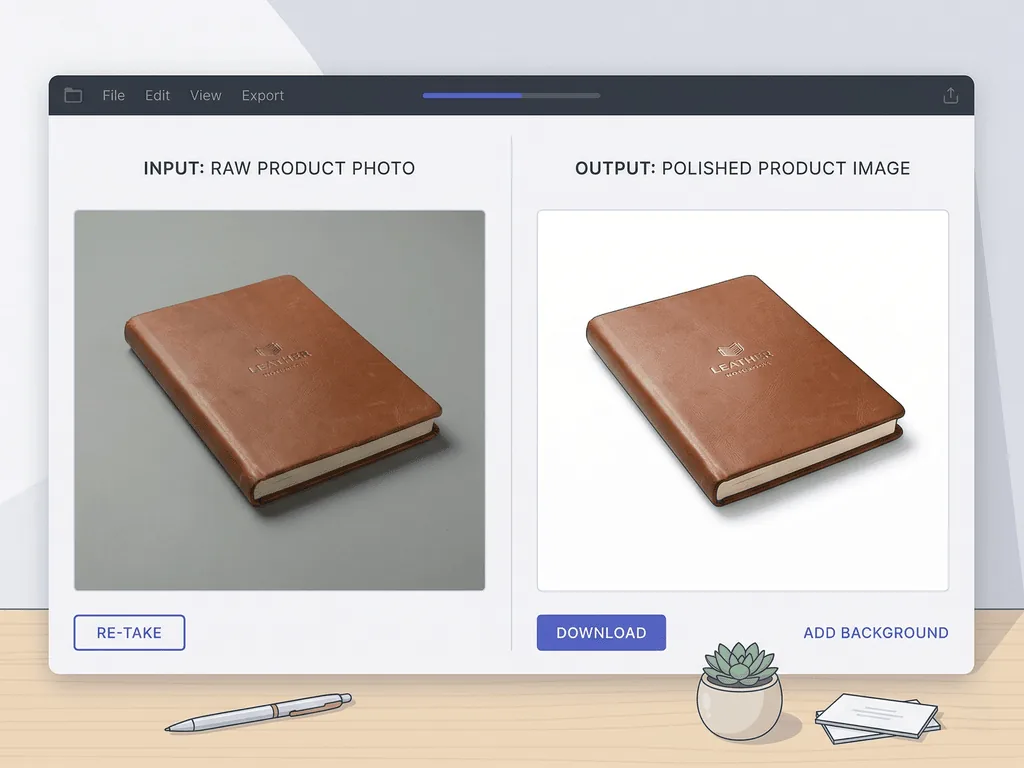
Temiz bir ürün fotoğrafı yükleyin, galeri görevi için Smart Preset seçin ve prompt yazmadan beyaz arka plan ya da yaşam tarzı varyasyonları oluşturun.
Temiz kenarlı, okunabilir detaylı ve kırpma için yeterli alan bırakan keskin yüksek çözünürlüklü ürün görseli çekin veya saklayın.
Ürün sayfaları, reklamlar, pazaryerleri ve gelecekteki yenilemeler için güvenilir tek kaynak dosya.
02
Galeri Sırasını Kurun
Temiz hero, alternatif açı, yakın plan kanıt görselleri ve bağlam ekleyen bir yaşam tarzı karesi oluşturun.
Müşteriyi netlikten güvene, güvenden isteğe taşıyan ürün sayfası.
03
Dışa Aktarın ve Kontrol Edin
Optimize edilmiş dosyaları yayınlayın, mobil yüklemeyi kontrol edin, zoom kalitesini inceleyin ve benzer SKU'larda kırpma kurallarını tutarlı tutun.
Hızlı, keskin, profesyonel ve güvenilir hissettiren vitrin.
Shopify Ürün Görseli Kontrol Listesi
Sıkıştırılmış web dışa aktarımları oluşturmadan önce yüksek çözünürlüklü ana dosyayı saklayın
Her kategoride tutarlı ilk görsel kırpması ve ürün ölçeği kullanın
İlk görselin koleksiyon sayfası boyutunda anında anlaşılır olmasını sağlayın
Malzeme, doku veya yüzeyi kanıtlayan en az bir yakın plan ekleyin
Final görselleri mobilde hız, netlik ve görsel tutarlılık açısından kontrol edin
Daha İyi Bir Görsel Sistem Ne Yaratır?
Müşteriler tek satır okumadan daha premium hissettiren vitrin
Şüpheleri daha hızlı cevaplayan ve fiyatı daha güvenilir kılan ürün sayfaları
Yeni SKU'lar, varyantlar ve sezonluk kampanyalar için tekrarlanabilir lansman süreci
Ücretli trafik için reklamdan ürün sayfasına daha temiz deneyim devamlılığı
Her görsel güncelleme için pahalı tekrar çekimlere daha az bağımlılık
Bu makaleyi paylaş
Her Shopify Ürün Sayfası Satın Almaya Hazır Görünsün
Bulanık fotoğraflar, yavaş dosyalar ve tutarsız galeriler yüzünden güven kaybetmeyin. Pixora Smart Presetleri ile temiz kaynak çekimleri dakikalar içinde Shopify uyumlu profesyonel görsellere dönüştürün.
İlk ürün görsellerinizi test etmek için 100 ücretsiz kredi
Güçlü zoom netliği istiyorsanız pratik başlangıç noktası kare ürün görselleri için 2048 x 2048 pikseldir. Shopify daha büyük dosyalara izin verir, ancak tutarlılık, sıkıştırma ve mobil performans ham boyut kadar önemlidir.
Hayır. Shopify farklı en-boy oranlarını destekler, ancak kare görseller koleksiyon gridlerini ve ürün sayfalarını tutarlı tutmanın en kolay yollarından biridir. Ürün formu veya kampanya yerleşimi gerektiriyorsa farklı oranlar kullanın.
Shopify ürün ve koleksiyon görselleri 20 MB altında olmalıdır. Vitrin performansı için genelde mümkün olan en ağır sürümü yüklemek yerine optimize edilmiş web dosyaları yayınlamalısınız.
JPEG ve WebP fotoğrafik ürün görselleri için genellikle iyi çalışır çünkü kalite ve dosya boyutu dengesini kurar. PNG şeffaflık, logolar ve keskin grafik kenarları için faydalıdır, ancak tam ürün fotoğraflarında daha ağır olabilir.
Dört ila altı görsel güçlü bir başlangıçtır: bir temiz hero, bir alternatif açı, bir veya iki detay karesi ve bir yaşam tarzı ya da kullanım senaryosu görseli. Yalnızca her görsel gerçek bir satın alma sorusunu cevaplıyorsa daha fazlasını ekleyin.
Evet. Pixora Smart Presetleri, kaynak ürün fotoğraflarından temiz beyaz arka planlı görseller, yaşam tarzı sahneleri ve kategoriye özel ürün görselleri oluşturmaya yardım eder. İş akışı preset tabanlıdır, bu yüzden prompt mühendisliği bilmeniz gerekmez.