Stop Losing Sales to Product Photos That Look Unfinished
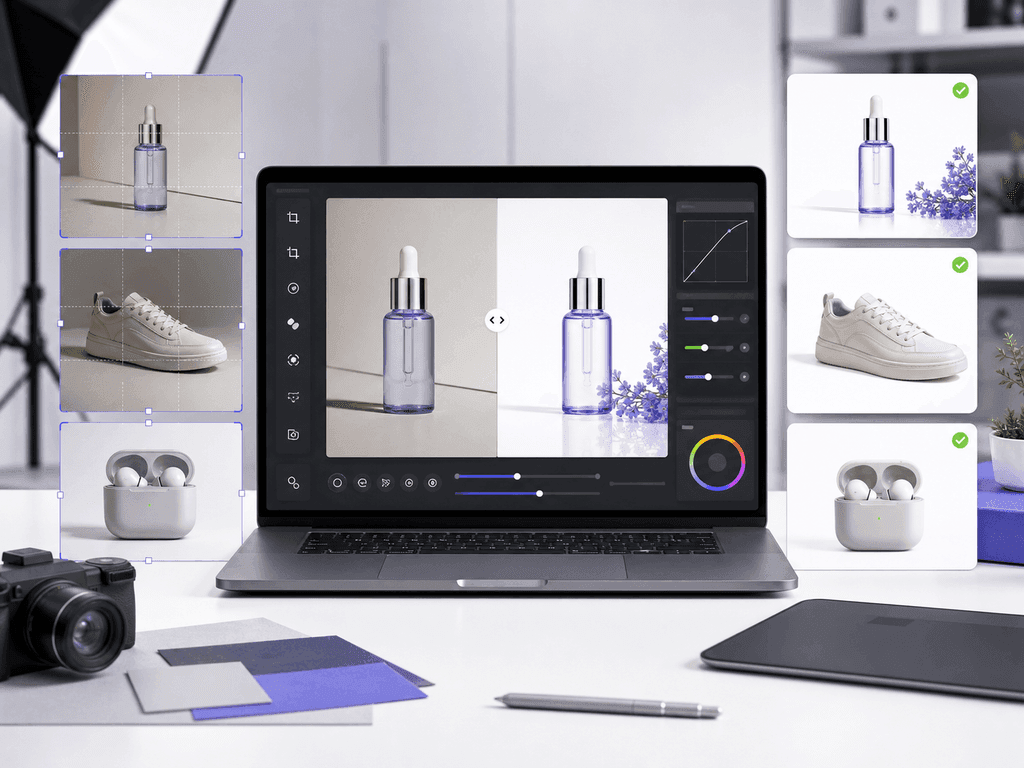
An AI product photo editor should do more than remove a background. Raw phone shots, supplier images, dull lighting, and mismatched crops make a store feel risky before shoppers compare price. This guide shows how to turn imperfect product photos into consistent, listing-ready assets without learning Photoshop, booking a studio, or writing complex AI prompts.
What Should an AI Product Photo Editor Actually Do?
An AI product photo editor should help a seller move from raw asset to publishable image with fewer decisions. The job is not only cleanup. A useful workflow handles background control, lighting improvement, product grounding, crop discipline, channel-specific styling, and visual consistency across the catalog.
Many ecommerce teams start with mixed inputs. One SKU has a supplier photo on gray. Another was shot with an iPhone on a desk. A third needs a lifestyle version for ads, but the only available image is a plain pack shot. If each image needs manual masking, color correction, shadow work, resizing, and export checks, publishing slows down and the storefront starts to look patched together.
The right editor gives you a simple sequence: prepare the source photo, choose the image role, generate a controlled result, review fidelity, then export for the channel. That sequence protects the business outcome. Shoppers see a clean product, believable lighting, and a brand that feels intentional. The seller stops losing hours to small edits that do not create strategy.
Why Do Basic Background Removers Fall Short?
A background remover is useful, but it is only the first layer of ecommerce editing. Removing the background does not automatically create a professional product photo. The product may still look flat, dark, cropped unevenly, or disconnected from the new surface. Without a believable shadow, a bottle can look like it is floating. Without consistent scale, a category page can make one item look cheaper or smaller than it really is.
There is also a channel problem. A marketplace main image may need a clean white background. A Shopify gallery image may need a softer brand surface. A social ad may need a lifestyle scene that makes the product feel desirable. One background tool cannot decide which role the image should play.
This is where AI editing becomes valuable when it is guided by ecommerce rules. Instead of asking for a generic "better photo," define the job: compliant main image, premium gallery image, lifestyle scene, seasonal campaign asset, or social creative. Each role has different constraints. The output improves when the tool understands those constraints before it changes pixels.
How Do You Prepare Source Photos for Better AI Editing?
Better inputs create better AI outputs. Start with a photo where the full product is visible, the label or key details are readable, and the edges are not cut off. Use even lighting when possible. The source photo does not need to look like a studio shot, but it should clearly show shape, material, color, and product boundaries.
Avoid heavy filters before editing. Strong contrast, artificial blur, and aggressive color presets can confuse the workflow because the editor has less accurate product information to work with. For reflective items, use simple diffused light rather than dramatic reflections. For fabric, make sure seams, texture, and silhouette are clear. For electronics, keep screens, ports, and edges visible.
Create a quick intake checklist before uploading: full product in frame, no important details hidden, no severe motion blur, no extreme shadows covering the object, and enough resolution for cropping. This small habit prevents wasted generations. It also gives you a repeatable standard for team members, freelancers, or suppliers who send you raw images.
Which Edits Matter Most for Ecommerce Conversion?
The edits that matter most are the ones that reduce buyer doubt. Clean background control makes the product easier to inspect. Accurate color and lighting help shoppers trust what they will receive. Grounding shadows make the product feel physically present instead of pasted into a scene. Consistent crop and scale make comparison easier on category pages.
Detail preservation matters as much as style. If a label becomes hard to read, a logo bends, or a product edge changes shape, the image may look impressive but sell poorly. Buyers use photos to answer practical questions: size, material, texture, finish, packaging, and use context. A good edit improves presentation without hiding those answers.
Think of every product image as a sales assistant. The main image says, "Here is exactly what this is." The gallery image says, "Here is why you can trust it." The lifestyle image says, "Here is the better version of your life with it." When your editor supports those roles, the catalog becomes clearer and more persuasive without becoming loud.
Where Do Prompt-Based Editors Slow Sellers Down?
Prompt-based editors can be powerful, but they often move the work from editing skill to prompt skill. Sellers have to describe softbox lighting, surface material, lens angle, shadow density, product scale, background mood, and export intent. A small wording change can shift the whole scene. That is creative flexibility, but it is not always efficient production.
Most small teams do not need a blank canvas for every listing image. They need a predictable way to make 20, 50, or 200 products look like they belong to one store. If every image starts with a new prompt, consistency depends on memory and luck. The seller may get one strong result, then spend another hour trying to reproduce the same visual logic for the next SKU.
A preset-based AI product photo editor reduces that friction. You pick a job-specific look, then add short notes only when needed. Pixora's Smart Presets carry the ecommerce photography logic: clean studio images, still-life gallery shots, and lifestyle contexts. The seller stays focused on product quality and channel fit instead of becoming a prompt engineer.
How Can Pixora Fit Into a Product Editing Workflow?
Use Pixora after you know the role of the image. For marketplace-style main images, choose a clean studio white preset so the product stays easy to inspect. For premium gallery shots, use a still-life preset that adds surface, shadow, and controlled visual interest. For secondary images, ads, or social content, use a lifestyle preset that places the product in a context buyers can imagine.
The workflow is simple: upload the product image, choose the Smart Preset that matches the role, add optional User Notes such as "warmer tone" or "minimal props," generate variations, and keep the result that best protects product fidelity. This gives you room to direct the output without writing a technical prompt from scratch.
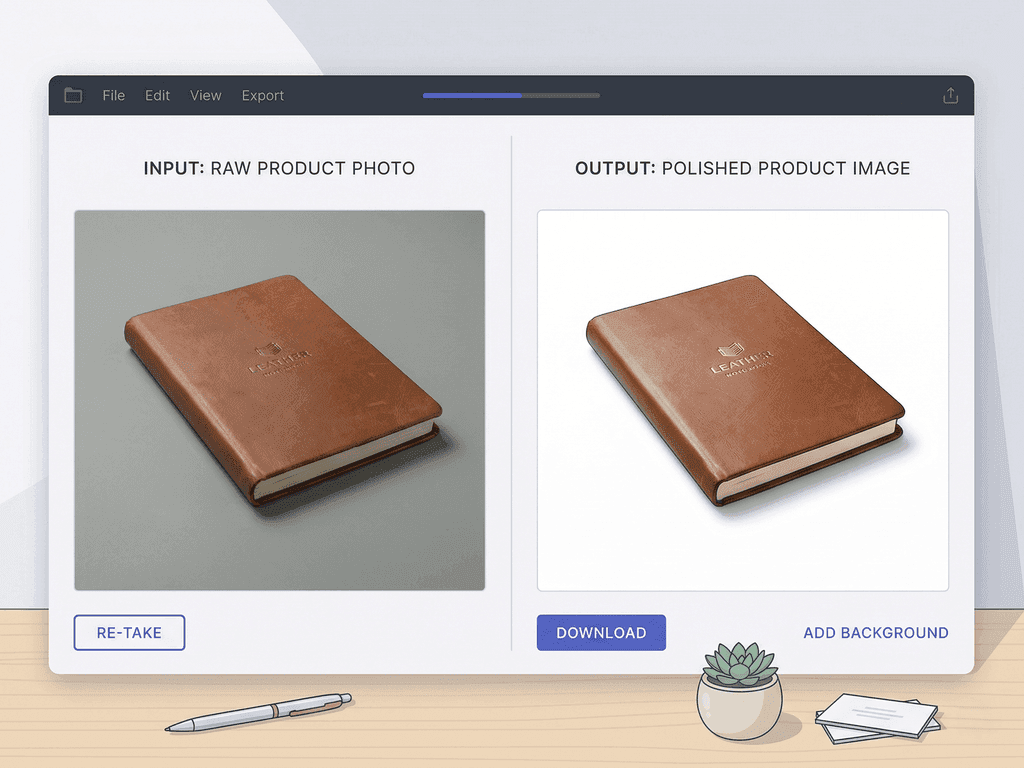
The transformation is practical. Before, every SKU created a list of manual editing tasks: remove background, fix lighting, add shadow, create a lifestyle version, resize, and check consistency. After, each SKU moves through a repeatable visual system. The store starts to look like a brand with a production team, even when the founder is still doing most of the work alone.
Editing Problems That Quietly Cost Sales
Raw supplier photos make the store feel inconsistent and lower buyer confidence.
Manual background removal fixes the cutout but leaves lighting, shadow, and style unresolved.
Prompt-based tools create one strong image but drift across the rest of the catalog.
Teams lose hours resizing, restyling, and rechecking images instead of launching products.
Editing Benchmarks to Keep in Mind
5
Core checks before publishing: background, crop, light, shadow, and product fidelity.
90%
Potential cost reduction when AI production replaces repeated studio-style editing.
$9.90
Pixora Pro monthly pricing for sellers who need ongoing product image creation.
Edit Product Photos Without Rebuilding Every Scene
Use Pixora Smart Presets to create clean main images, polished gallery shots, and lifestyle visuals from the same raw product photo workflow.
Decide whether the photo needs to explain, prove, or create desire before selecting an edit style.
Every image has a commercial purpose.
02
Apply a preset system
Use repeatable presets for studio, still-life, and lifestyle assets instead of writing a new prompt for each SKU.
Cleaner output and stronger catalog consistency.
03
Review before export
Check label readability, product shape, crop, shadow, color accuracy, and channel fit before publishing.
Fewer visual mistakes reach your storefront.
AI Product Photo Editor Checklist
Start with a source photo where the full product and key details are visible.
Define whether the image is for a main listing, gallery proof, lifestyle slot, or ad creative.
Keep product shape, labels, logos, and material cues accurate after editing.
Use consistent crop, scale, and lighting rules within each product category.
Export only after checking the image against the marketplace or storefront context.
What a Better Editing Workflow Creates
A storefront that looks more professional before the shopper reads a single product detail.
Faster launches because image production follows a known system.
More useful gallery images that answer buyer objections instead of only looking decorative.
Lower creative costs because fewer manual retouching passes and reshoots are needed.
A brand image that can scale across marketplaces, Shopify, ads, and seasonal campaigns.
Share this article
Turn Raw Product Shots Into Listing-Ready Images
Create studio, gallery, and lifestyle product photos with Smart Presets built for ecommerce sellers who need speed, consistency, and professional results.
It is a tool that uses AI to help turn raw product photos into ecommerce-ready images. Depending on the workflow, it can support background control, lighting improvement, shadows, styling, resizing, and channel-specific image creation.
Yes. A background remover only isolates the product. A stronger ecommerce editing workflow also considers lighting, product grounding, crop, scale, style, and the role of the image in the listing.
It can when you start with clear source photos and review the result carefully. Always check product shape, labels, logos, colors, and key details before publishing.
No. Pixora uses Smart Presets so you can choose a product photography style without writing technical prompts. You can add optional User Notes in plain language when you want extra direction.
Clean White Background presets work well for clean main images, Accessory Still Life: Aesthetic Display supports premium gallery images, and Tech Lifestyle: Modern Context or similar lifestyle presets help create secondary visuals.
For many ecommerce listing, gallery, and campaign images, AI can replace repeated studio-style production. A photographer may still be useful for complex shoots, hero campaigns, or products that require strict physical accuracy.
Check product fidelity, readable details, background suitability, crop, scale, shadow realism, color accuracy, and whether the image fits the platform where it will be used.