How to Create Shopify Product Photos That Convert Faster
A weak product photo does not just look amateur. It makes your store feel risky. Shoppers cannot touch your product, so every shadow, crop, and angle has to do the trust-building for you. This guide shows how to shoot cleaner source images, meet Shopify image expectations, and use AI presets to publish faster without losing quality.
Why Shopify Product Photos Decide Whether a Visitor Trusts You
Shopify stores win or lose trust before the product description is even read. A shopper lands on your collection page, sees a thumbnail grid, and makes a fast judgment about quality, price, and legitimacy. If your images look dim, cropped inconsistently, or clearly taken in different lighting conditions, the store feels improvised. That impression is expensive because it lowers click-through to product pages and makes every price point feel harder to justify.
This matters even more on mobile. Most shoppers compare multiple tabs, switch between social ads and product pages, and make early elimination decisions in seconds. They are not asking whether your product is decent. They are asking whether your brand looks safe to buy from. Strong product photography answers that question instantly.
On Shopify, images carry a heavier burden than on marketplaces because you control the entire storefront. There is no platform template doing the credibility work for you. Your photos have to communicate material quality, color accuracy, scale, and brand taste at the same time. That is why product photography is not a design detail. It is a conversion system.
The risk is not only losing the sale in front of you. Weak visuals also make ads less efficient, increase hesitation in abandoned carts, and create mismatch between customer expectation and delivered product. Better images do the opposite: they reduce uncertainty, make pricing feel more reasonable, and help a small brand look more established than its budget would normally allow.
What Image Specs Matter Most on Shopify?
The first rule is simple: keep one high-resolution master image for every SKU, then create variations from that master. Shopify supports large product images, and its own guidance commonly points merchants toward square images around 2048 by 2048 pixels when they want strong zoom clarity. That does not mean every product image must be perfectly square, but it does mean your source files should be large enough to support cropping, zoom, and retina displays without softening detail.
Resolution is only one part of the system. Consistency matters just as much. If your first product uses a clean white background, your second uses warm beige, and your third has a dramatic shadow, the store starts to feel chaotic. Choose a repeatable visual structure instead. For many brands, that means a clean hero image first, detail images next, and one or two lifestyle images later in the gallery.
File weight matters too. Oversized files can slow product pages, while aggressive compression can flatten textures and make fine details look cheap. The best workflow is to export optimized web images after you have protected your master files. That gives you sharper product pages without sacrificing load speed.
Finally, think in terms of product-page jobs rather than generic photo quality. Your hero image must stop the scroll and explain the product immediately. Alternate images need to prove material, scale, and use case. The right Shopify image system is not just technically correct. It helps shoppers move from curiosity to confidence with fewer unanswered questions.
How to Shoot Better Source Photos Without Building a Full Studio
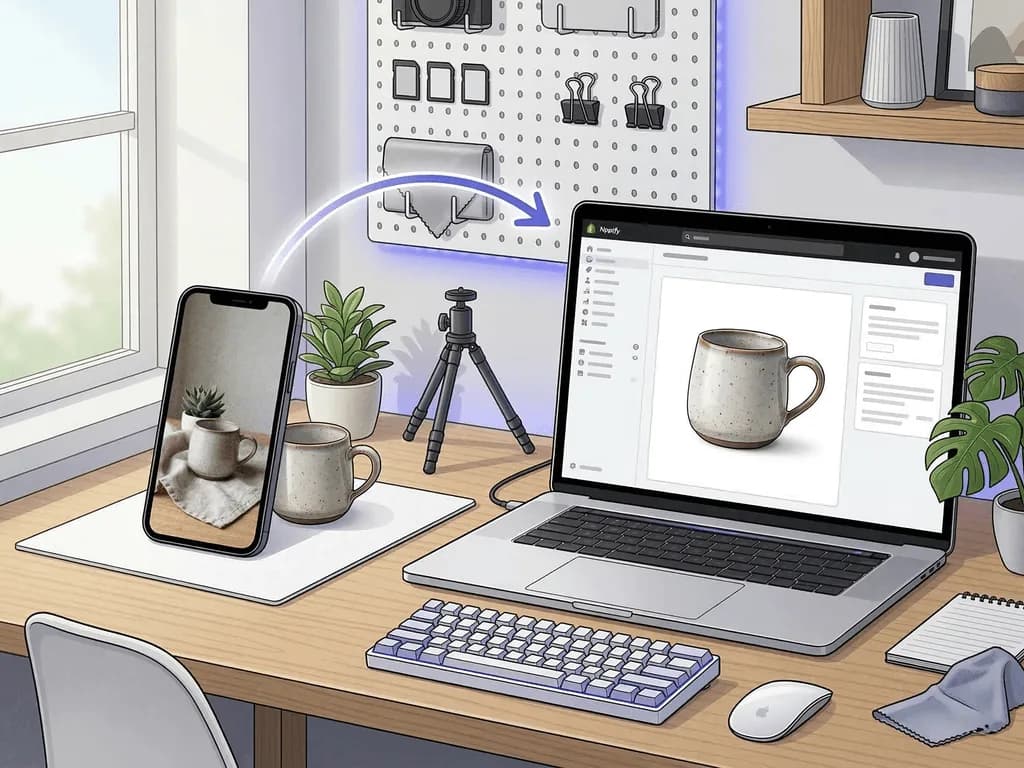
You do not need expensive gear to create strong source photos for Shopify. You need light control, stable angles, and a repeatable capture routine. Start near a window with indirect daylight. Place the product so the main light arrives from about forty-five degrees rather than directly overhead. This gives the product shape and avoids the flat, flash-like look that makes catalog photos feel cheap.
Use a white foam board or even a sheet of white card on the shadow side to bounce light back into the product. That one change solves a common beginner problem: one half of the item looks bright while the other collapses into muddy grey. If you are shooting reflective products, move slowly and watch how the room appears on glossy surfaces. A small change in angle can remove ugly reflections without any extra equipment.
Stability matters more than people expect. Keep the camera level, use grid lines, and shoot from a consistent height across the category. A bottle line, jewelry collection, or tech accessory set looks more premium when every image follows the same framing logic. That is how a small catalog starts looking like a system instead of a series of unrelated shoots.
Capture a practical shot set for every SKU: one straight hero, one three-quarter angle, one close-up of the most important texture or feature, and one image that leaves a little negative space for merchandising needs. Before you stop, zoom in and check labels, stitching, edges, and surfaces. AI can accelerate cleanup and scene creation later, but it still performs best when the input image is honest, sharp, and well lit.
What Image Mix Converts Best on a Shopify Product Page?
Most Shopify stores underperform because they treat every gallery image as if it has the same job. It does not. Your first image is the decision opener. It should show the product clearly, fast, and with minimal distraction. For many brands, that means a clean white or very controlled neutral background. The purpose is not artistic flair. It is instant comprehension.
Your second and third images should answer the silent objections that block conversion. Show scale. Show texture. Show the feature that justifies the price. If you sell apparel, that might be fabric drape, stitching, or fit. If you sell beauty products, it might be packaging detail and ingredient texture. If you sell electronics, it might be ports, finish, and how the product sits in a real workspace.
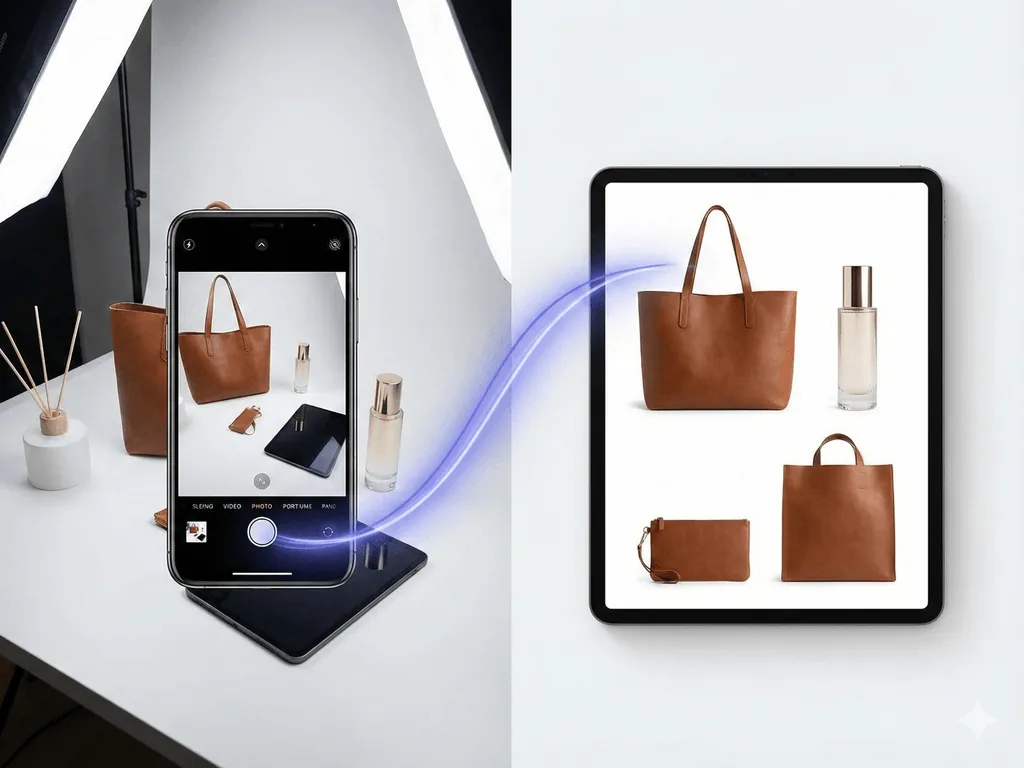
After those trust-building images, lifestyle imagery starts doing its best work. This is where the shopper imagines ownership. A bag shown in a styled still life feels giftable. A speaker placed in a clean desk setup feels relevant. A serum bottle on a podium with soft shadows feels premium instead of generic. Lifestyle images should not replace clarity. They should extend it.
A practical Shopify gallery usually needs four to six images per product. One clean hero. One angle variation. One or two detail frames. One lifestyle image. Optional use-case or packaging image if the category demands it. When every image has a clear role, the page feels persuasive rather than repetitive. You are not adding more photos for the sake of quantity. You are reducing doubt in a deliberate sequence.
Before-After-Bridge: From a Patchwork Catalog to a Storefront That Looks Premium
Before: a small Shopify brand had solid products and decent traffic, but the storefront looked inconsistent. Some items were shot on kitchen counters, others on white paper, and others in dim evening light. Nothing looked terrible on its own, yet together the catalog signaled hesitation. Product pages felt like experiments instead of a polished store. Customers kept asking basic questions about color, finish, and size because the images were not answering them clearly.
After: the team rebuilt the process around a repeatable image system. Every SKU got the same capture checklist, the same core angles, and the same gallery order. Main images became clean and readable. Detail shots focused on what justified the price. Lifestyle frames were used only after clarity was established. The store started looking cohesive, not because every image was identical, but because every image felt intentional.
The bridge was not a bigger photo budget. It was a workflow that removed decision fatigue. Instead of improvising backgrounds and retouching style every week, the team defined a simple rule set for source photos and a preset strategy for post-production. That change shortened launch time for new products, made merchandising faster, and gave ads a more consistent landing experience.
That is the real opportunity with Shopify product photography. You are not trying to create one perfect image. You are building a storefront language that scales. Once your visual system is clear, every new SKU is easier to launch, every campaign looks more trustworthy, and your store feels more premium without demanding agency-level production on every shoot.
How Pixora Smart Presets Fit a Faster Shopify Workflow
This is where AI becomes useful in a commercially sensible way. Shopify teams do not need endless prompt experimentation. They need clean listing images, persuasive lifestyle visuals, and a workflow that can keep up with catalog changes. Pixora fits that need because Smart Presets turn common product photo jobs into repeatable outputs.
Use Fashion E-commerce Studio: Clean White Background when you need a clear hero image that keeps attention on the product and supports a uniform storefront. Use Accessory Still Life: Aesthetic Display when you want a premium secondary image that adds mood without replacing clarity. Use Tech Lifestyle: Modern Context when you need electronics or gadget images that show the product in a relevant everyday setting. Each preset handles lighting logic and scene construction without asking you to write technical prompts.
The practical advantage is speed with structure. Upload a clean source photo, choose the visual intent, add short user notes if needed, and generate. You are not learning photography jargon or building a scene from scratch. You are applying a system that keeps your catalog visually consistent while still giving each product enough context to sell.
Pixora is most valuable when you use it as part of an image stack, not as a shortcut for messy inputs. Capture honest source images first. Then use Smart Presets to create the exact mix Shopify product pages need: a clean first impression, detailed trust signals, and lifestyle imagery that helps the customer picture ownership. That is the combination that moves faster without looking cheap.
Why Shopify Merchants Get Stuck on Product Images
DIY photos make the storefront look inconsistent across categories and launches
Large image files improve clarity but can hurt page speed when exported carelessly
Lifestyle images often look attractive but fail to explain the product quickly enough
Traditional shoots are too slow and expensive for frequent launches, tests, and seasonal updates
The Shopify Image Math
2048 x 2048
Common Shopify recommendation for square images with zoom-friendly detail
$9.90
Monthly Pixora Pro price compared with a far higher studio reshoot cost
30 sec
Typical preset generation time for a new catalog-ready variation
Turn One Clean Product Shot Into a Shopify-Ready Gallery
Test Smart Presets on a real SKU and compare a clean hero image, a detail-led variant, and a lifestyle frame before planning another manual shoot.
Shoot in soft daylight, keep the camera level, and preserve labels, edges, and material detail in one sharp source image.
A reliable master file that supports both clean listing images and richer secondary visuals.
02
Match Each Preset to a Gallery Job
Use a clean white-background preset for the first image, then add a detail-friendly or lifestyle preset for context and brand feel.
A product page where every image has a clear conversion purpose.
03
Export for Speed and Consistency
Keep your high-resolution master, then publish optimized Shopify-ready images with consistent crop logic and gallery order.
Sharper pages, faster launches, and a storefront that feels professionally managed.
Pre-Publish Shopify Image Checklist
The first image explains the product instantly without visual clutter
Every SKU follows the same crop logic, angle logic, and gallery sequence
At least one image proves texture, finish, or a premium feature up close
Lifestyle frames add context without hiding the actual product
Web exports are optimized for speed but still retain zoom-worthy detail
What Improves When Shopify Product Images Become a System
Collection pages look more premium and trustworthy at first glance
Product pages answer objections faster, which reduces hesitation
New launches ship with less manual editing and less visual drift
Paid traffic lands on pages that feel consistent with the ad promise
A small brand starts looking operationally mature without studio-scale overhead
Share this article
Build a Shopify Store That Looks Ready to Buy From
Stop losing conversions to weak product images. Upload one real SKU, choose a Smart Preset, and create a Shopify-ready gallery with the speed of AI and the discipline of a professional workflow.
A strong baseline is to keep high-resolution master files and publish square product images around 2048 by 2048 pixels when you want reliable zoom clarity. The exact crop can vary by category, but consistency across the catalog matters as much as raw size.
A practical starting point is four to six images per SKU: one clean hero image, one alternate angle, one or two detail shots, and one lifestyle image. Add more only when each image answers a specific buying question.
For many brands, yes, because a clean white or controlled neutral background makes the product easier to understand at a glance. The right choice depends on brand positioning, but clarity should come before mood in the first image.
Yes, if the workflow starts with an honest source photo and uses AI for structured enhancement rather than random scene generation. The goal is to preserve product truth while improving presentation speed, consistency, and context.
A useful combination is Fashion E-commerce Studio: Clean White Background for the first image, Accessory Still Life: Aesthetic Display for premium secondary visuals, and Tech Lifestyle: Modern Context for electronics or desk-based products. The best preset mix depends on the category and the job each gallery image needs to do.
No. Pixora is built around Smart Presets, so you choose a visual direction instead of writing technical prompts. You can add short user notes for nuance, but the workflow is designed for merchants, not prompt specialists.