Workflow Overview
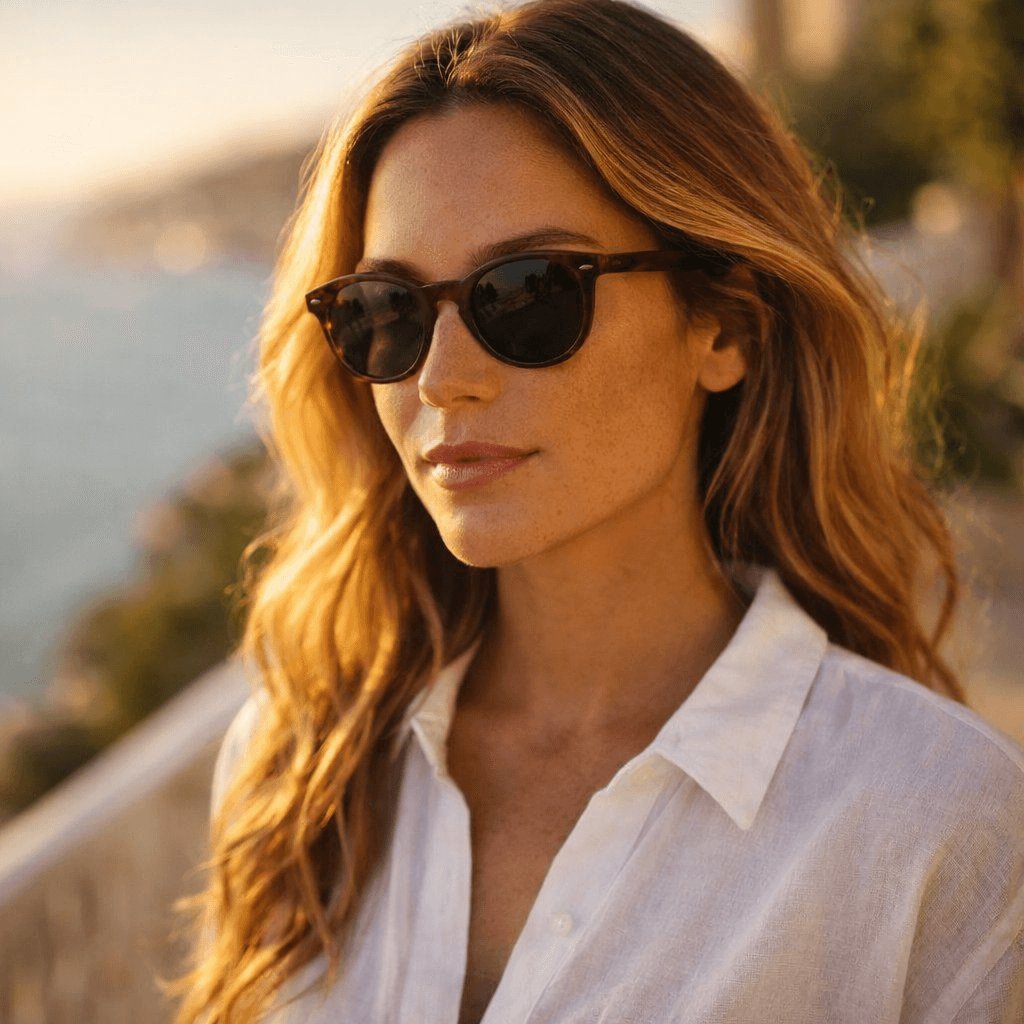
Showcase fashion accessories worn by a photorealistic model in a natural, real-world setting. Perfect for demonstrating size, fit, and styling context.
How to use
1. Select 'Accessory Lifestyle: On-Model Context'. 2. Upload one or more clear photos of your accessory from different angles. 3. (Optional) Use 'Additional Notes' to specify model preferences or setting. 4. Generate to instantly see it worn by a model (e.g., ring on finger, bag on shoulder). 5. Download for social media or product pages.
Best for
- Jewelry scale demonstration (e.g., earring size on ear)
- Handbag styling context
- Watch marketing visuals on wrist
- Social media ads for accessories
- E-commerce secondary images
Tips
- Multiple Angles: Upload front, side, and detail shots to help the AI accurately place your accessory on the model.
- Customize the Model: Use 'Additional Notes' to specify details—'young woman with curly hair, beach setting' or 'professional male, urban background'.
- Scale Reference: This preset is the best way to show customers how big or small an item is without using a ruler.
- Lighting: The AI matches the reflection on your jewelry to the environment (e.g., warm sunset reflections).
- Simple Input: A white background input photo often yields the most seamless integration onto the model.
Gallery
FAQ
Will it know where to put the item?
Can I change the model?
Does it work for men's accessories?
Categories
Requirements
A high-quality photo of the accessory on a simple background. No text prompt needed. The AI detects the type of accessory (ring, necklace, etc.) and places it on the correct body part.
Watch out for
Very fine details (like tiny engravings) might be slightly softened in the lifestyle context. Ensure the input photo is high-resolution. The model's pose is auto-selected to best show the item.
