How to Use AI Product Photography for Amazon Listings Without Risking Trust
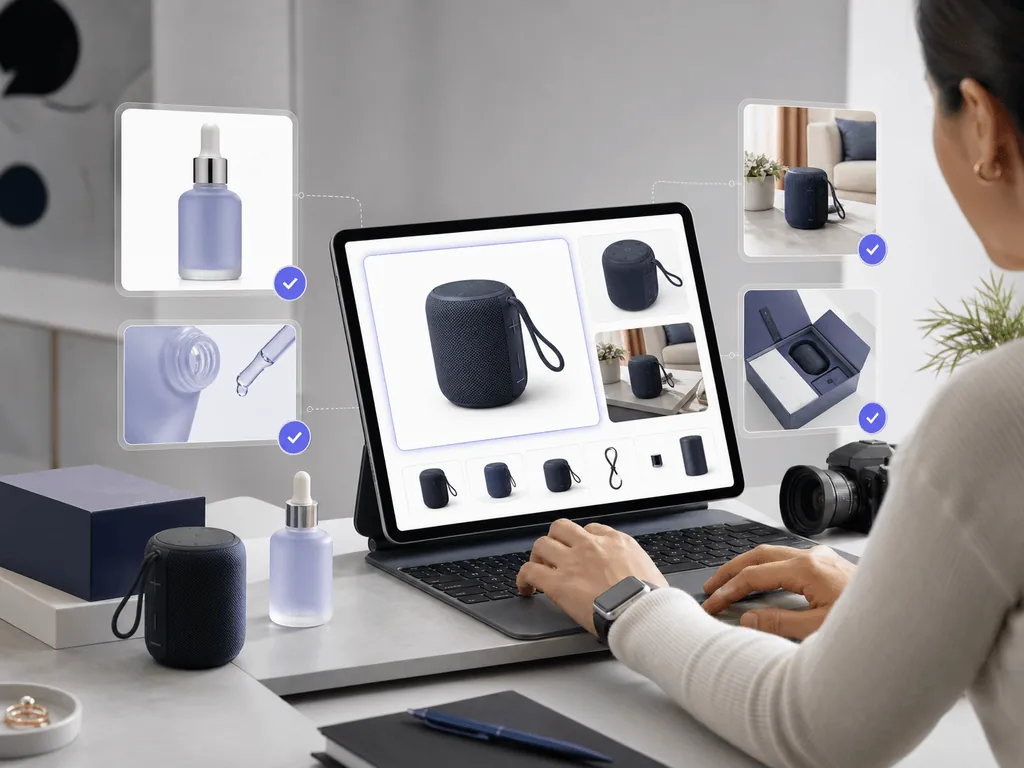
Amazon shoppers judge your product before they read the bullet points. A weak main image can reduce clicks, while a confusing gallery can make buyers hesitate. This guide shows how to use AI product photography for Amazon in a structured way: clean main images first, lifestyle context second, and no random prompt experiments.
What Should AI Product Photography Do for Amazon Sellers?
AI product photography for Amazon should help you create listing assets faster without weakening accuracy. The goal is not to invent a different product or hide important details. The goal is to turn one honest source photo into a set of images that support the way Amazon shoppers make decisions: first click, then inspect, then believe.
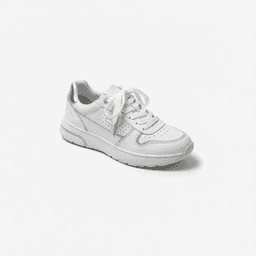
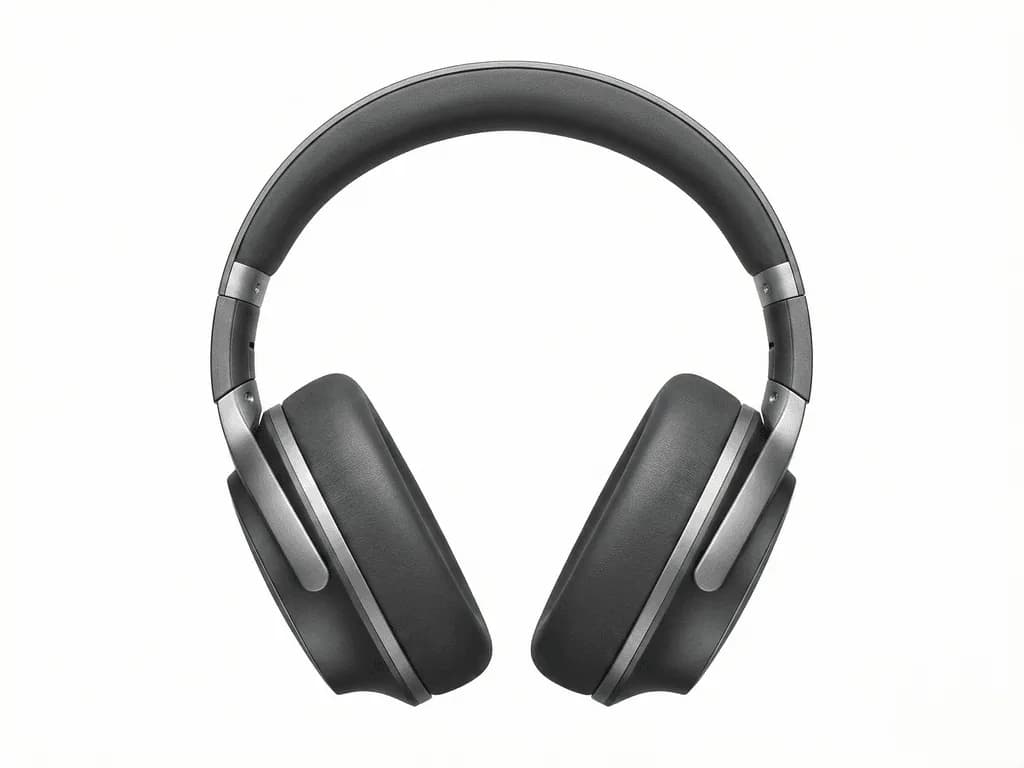
Start with the main image. It has the hardest job because it appears in search results, sponsored placements, and mobile grids. It needs to be clean, readable, and compliant with the category rules that often require a pure white background, strong product fill, and no extra props or text. If this image looks amateur, shoppers may never reach the listing.
Then build the gallery. Secondary images can carry more persuasion. They can show scale, lifestyle context, material detail, packaging, and use cases. A good Amazon gallery does not simply repeat the same product at different angles. It removes doubt in a sequence.
This is where AI becomes useful when it is guided by presets instead of open-ended prompts. Pixora's Smart Presets let sellers choose a commercial photo job, such as clean white studio, modern tech lifestyle, or aesthetic still life, without writing lighting instructions from scratch. That matters because Amazon sellers need repeatable listing assets, not one lucky image.
Why Is the Main Image Still the Safest Place to Be Conservative?
The main image should be treated as a compliance asset before it is treated as a creative asset. Amazon's style guidance commonly requires the product to be shown clearly on a pure white background, with the product filling most of the frame and without unauthorized text, borders, badges, watermarks, props, or lifestyle elements. Category rules vary, but the principle is stable: the main image must make the product obvious and trustworthy.
This is why many AI workflows go wrong. Generic image tools want to make scenes more interesting, so they add surfaces, props, dramatic lighting, or visual context. That may look attractive in an ad, but it can be the wrong move for the main image. The risk is not only rejection. The bigger risk is losing click-through because the thumbnail is visually busy or the product does not look exactly like what the customer will receive.
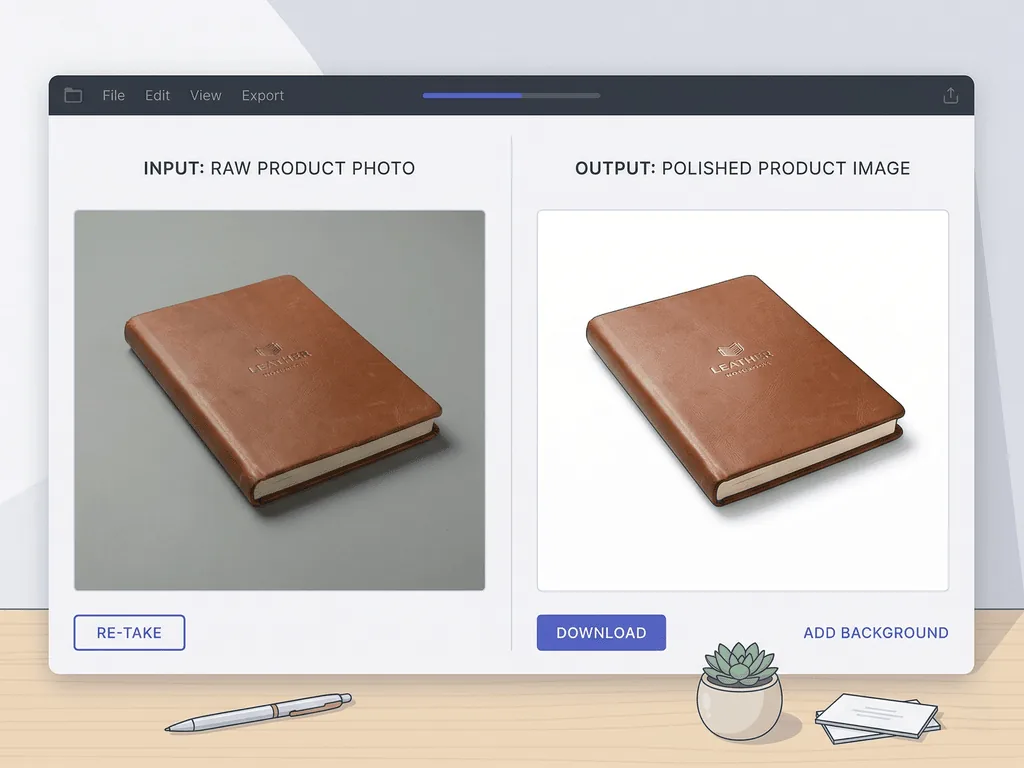
A safer workflow separates the jobs. Use a studio white preset for the main image so the product stays central, clean, and easy to inspect. Keep creative treatments for secondary slots where Amazon allows more context. This gives you the benefit of AI speed without mixing compliance and persuasion into one risky image.
Pixora is built around that separation. A fashion, accessory, electronics, beauty, food, or home product can start with a clean white-background preset, then move into lifestyle or still-life presets for gallery depth. The seller does not need to become a prompt engineer to keep those jobs distinct.
What Image Mix Works Best for an Amazon Listing?
A practical Amazon image set usually needs one clean main image and several supporting images with different jobs. The first image earns the click. The next images earn confidence. That means every slot should answer a specific buyer question rather than showing random visual variety.
Use the second image to show a useful angle or close-up. If the product has texture, ports, stitching, ingredients, or a premium finish, make that detail easy to inspect. Use another slot for scale. Buyers often hesitate when they cannot understand size from a plain product shot. A hand, desk, room, model, or contextual surface can make dimensions feel more real when used in a secondary image.
Lifestyle images belong later in the sequence. Their job is desire. They help the shopper imagine the product in a home, gym bag, bathroom shelf, kitchen counter, desk setup, or gift moment. The image should still respect the product. If the background becomes more interesting than the item, the asset is working against the sale.
A useful starting stack is: clean main image, angle or detail image, scale image, lifestyle use-case image, packaging or bundle image, and optional A+ content visual. With Pixora, you can create that stack from a repeatable preset plan instead of booking a new shoot every time a listing needs another image.
How Do You Prepare Source Photos So AI Keeps the Product Accurate?
The best AI output starts with a truthful source photo. Before using any AI tool, capture the product clearly, sharply, and without heavy shadows covering important edges. Place the product on a simple surface, use soft daylight or diffused light, and avoid extreme angles unless that angle is important for the listing.
Accuracy matters more on Amazon than on social media because shoppers compare the image against the delivered product. If the label, zipper, button, texture, color, or shape changes, you create a trust problem. That can lead to returns, bad reviews, or customer service questions. AI should improve presentation, not rewrite the SKU.
Take a small source set for each product: one straight hero, one three-quarter angle, one detail close-up, and one shot that shows the product's true proportions. Check labels at full size before uploading. Make sure reflective products are not capturing ugly room reflections, and make sure transparent products have visible edges.
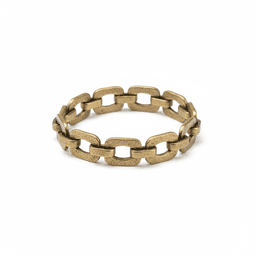
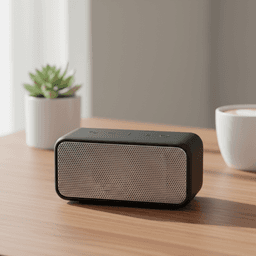
Then choose the preset based on the listing job. Use Fashion E-commerce Studio: Clean White Background for apparel, Accessory Studio: Clean White Background for small hard goods, and Tech Studio: Clean White Background for electronics-style listings. For secondary images, move into Accessory Still Life: Aesthetic Display or Tech Lifestyle: Modern Context when context helps the buyer understand use.
Before-After-Bridge: From One Weak Photo to a Listing System
Before: an Amazon seller had a decent product but only one supplier-style image. The main image was small in the frame, the white background was slightly gray, and the gallery did not show scale or use. The product page technically existed, but it looked unfinished next to competitors with polished image sets. Every ad click landed on a page that asked the buyer to imagine too much.
After: the seller rebuilt the listing around image jobs. The first slot became a clean, high-contrast main image. The second showed the product from a useful angle. The third focused on the material detail that justified the price. The fourth placed the product in a realistic use context. The fifth supported A+ content with a broader brand visual. Nothing felt random. Each image reduced a different kind of doubt.
The bridge was not a full studio day. It was a repeatable AI workflow. The seller shot one clean source photo, used a white-background preset for the main image, and then used lifestyle presets only for secondary assets. That changed the production rhythm. Instead of waiting for a photographer or testing vague prompts, the seller could build a complete listing gallery in one focused session.
That is the real value of AI product photography for Amazon. It is not about replacing judgment. It is about making the right judgment faster: compliance for the main image, clarity for the early gallery, context for later slots, and consistency across every SKU.
Where Does Pixora Fit in an Amazon Seller Workflow?
Pixora fits best after you have a clean source photo and before you publish or refresh the listing gallery. It is designed for sellers who want professional-looking output without writing prompts such as "softbox reflection, 50mm lens, white sweep, controlled contact shadow." You choose a Smart Preset that already contains the visual logic for the job.
For Amazon, that usually means using clean white-background presets for main images and category-specific lifestyle presets for secondary slots. A tech accessory can move from Tech Studio: Clean White Background to Tech Lifestyle: Modern Context. A jewelry or small accessory SKU can move from Accessory Studio: Clean White Background to Accessory Still Life: Aesthetic Display. A fashion item can use Fashion E-commerce Studio first, then on-model or ghost mannequin presets where the category needs fit context.
This preset-first approach helps protect consistency. If you launch ten SKUs with ten different prompt experiments, your catalog can look fragmented. If you choose a repeatable preset system, your listings begin to look like they belong to the same brand.
Pixora also reduces the cost of iteration. A traditional reshoot can cost hundreds or thousands of dollars and slow down launch timing. Pixora's Pro plan is $9.90 per month, so you can test cleaner main images, seasonal gallery updates, and A+ visual concepts without treating every variation like a production event.
Why Amazon Sellers Struggle With Product Images
Main images need strict clarity, but DIY photos often look gray, small, or uneven
Secondary slots need persuasion, but sellers rarely have enough lifestyle assets
Generic AI tools can add props or change product details in ways that create risk
Traditional shoots are too slow for listing tests, seasonal refreshes, and catalog growth
The Amazon Image Workflow Math
85%
Common minimum frame-fill benchmark for Amazon main images
$9.90
Monthly Pixora Pro price compared with repeated studio or editing costs
Build an Amazon Listing Gallery From One Clean Source Photo
Use Smart Presets to create a clean main image first, then add secondary visuals that show detail, scale, and lifestyle context without prompt engineering.
Shoot a sharp, well-lit source image where labels, edges, proportions, and key details are easy to inspect.
A reliable input that helps AI improve presentation without changing the SKU.
02
Create the Main Image Conservatively
Choose a clean white-background preset that keeps the product centered, readable, and free from extra props or text.
A safer hero image for search results, ads, and mobile grids.
03
Add Gallery Context Deliberately
Use lifestyle, still-life, or on-model presets for secondary slots where context helps buyers understand value.
A complete image sequence that supports clicks, confidence, and purchase intent.
Amazon AI Product Photo Checklist
The main image is clean, centered, and free from text, borders, props, or watermarks
The product fills enough of the frame to read well in search and on mobile
Labels, colors, shape, and product features match the real item
Secondary images each answer a different buyer question
Lifestyle images add context without making the product look different from what ships
What Improves When Amazon Images Become a System
Main images become easier to scan in crowded search results
Gallery slots reduce buyer hesitation by showing scale, detail, and use
New SKUs launch faster because the visual workflow is already defined
A+ content and seasonal refreshes become less expensive to test
Your brand looks more consistent across product lines and campaigns
Share this article
Create Amazon Listing Images With More Control
Stop losing clicks to weak product photos. Upload a clean SKU, choose a Smart Preset, and build an Amazon-ready image stack with speed, consistency, and commercial intent.
Yes, as long as the images accurately represent the product and follow Amazon's image rules for the relevant slot and category. The safest approach is to preserve the real product and use AI to improve backgrounds, lighting, and contextual secondary visuals.
It can be AI-assisted, but it should stay conservative. Use AI to create a clean white background, better lighting, and stronger framing while keeping the product truthful and free from added props, text, or misleading details.
Use clean white-background presets that match your category, such as Fashion E-commerce Studio, Accessory Studio, Tech Studio, Beauty Studio, Food Menu, or Home & Appliances Studio. These are better suited to main-image clarity than creative lifestyle presets.
Yes. Secondary slots are where AI lifestyle, still-life, detail, and contextual images can help shoppers understand scale, use case, and brand value. Keep the main image conservative, then use richer visuals later in the gallery.
A useful starting point is six: one clean main image, one alternate angle, one detail close-up, one scale image, one lifestyle use-case image, and one packaging, bundle, or A+ content visual. Add more only when each image answers a real buyer question.
No. Pixora uses Smart Presets, so you choose the photo job instead of writing technical lighting and scene prompts. You can add user notes for small creative direction, but the workflow is designed for sellers, not prompt specialists.