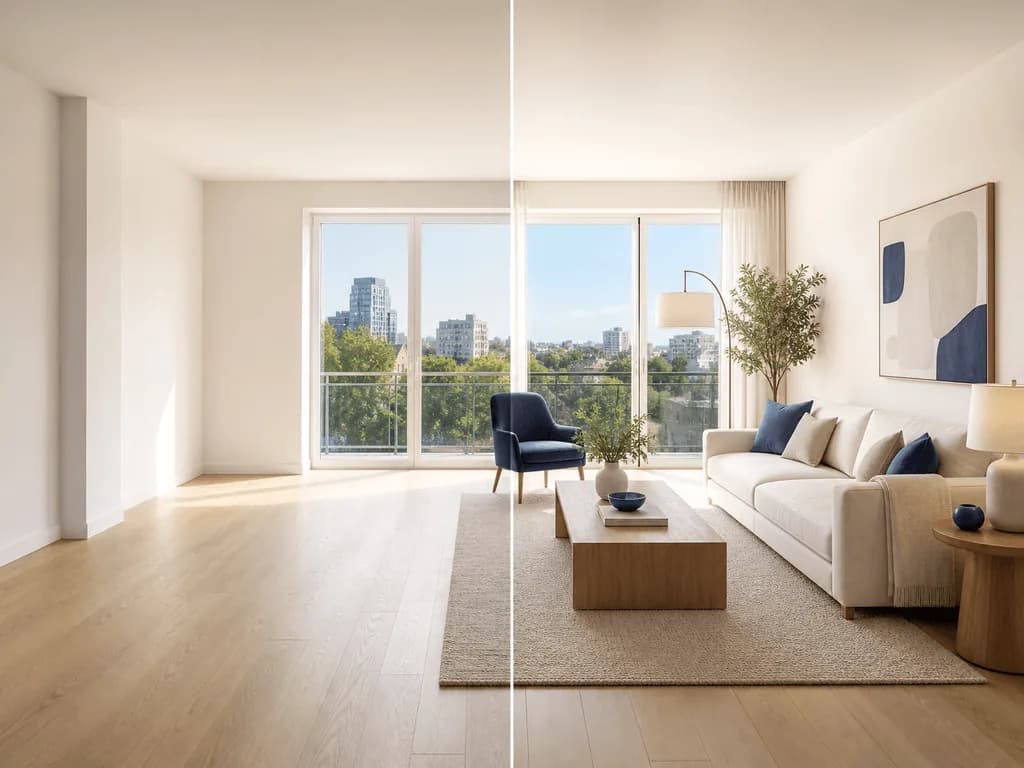
AI Architectural Visualization: Stop Losing Client Momentum to Slow Renders
A promising design can lose energy when the visuals lag behind the idea. Clients struggle to judge massing, materials, light, and atmosphere from raw screenshots, and every delay creates room for doubt. This guide shows how to use AI architectural visualization to move from rough model to persuasive visual faster, without pretending a concept image is a final construction document.
Quick Answer: What Is AI Architectural Visualization?
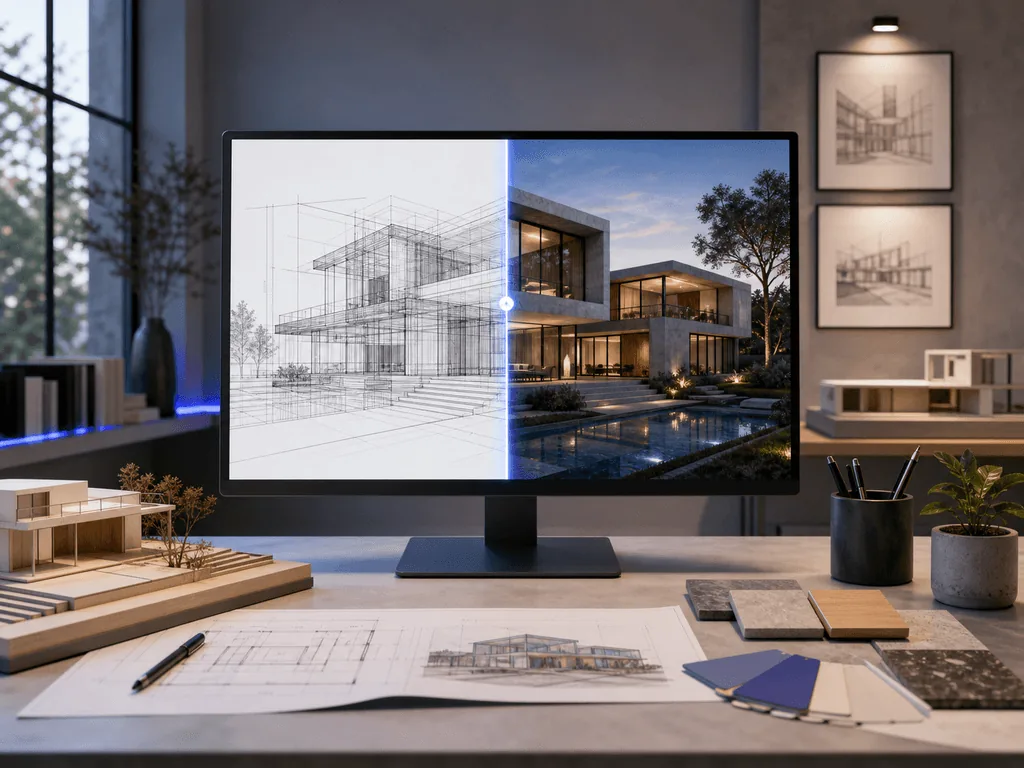
AI architectural visualization uses image generation and image-to-image tools to turn sketches, wireframes, clay renders, or 3D software screenshots into more realistic architectural scenes. The output can show material direction, lighting mood, landscaping, sky, interior warmth, and general atmosphere before a team invests hours in a full render setup.
The goal is speed at the concept and presentation stage. A designer can test a concrete facade, warm timber cladding, evening interior glow, or landscaped courtyard without rebuilding every material, light, and entourage asset inside a rendering engine. That makes AI useful for client conversations, pitch decks, early marketing visuals, and design-option reviews.
It is not a replacement for technical drawings, BIM coordination, construction details, or final verified renders. Treat it as a visual decision layer. It helps people understand the direction faster, while the architectural team still owns accuracy, code compliance, dimensions, and documentation.
Pixora supports this workflow through the Architecture: 3D to Photorealistic Render preset. You can upload a screenshot from SketchUp, Blender, Rhino, Revit, 3ds Max, or a clean architectural sketch, then optionally add notes such as "polished concrete floors" or "golden hour sunlight". The preset keeps the workflow simple while guiding materials, global illumination, and atmosphere.
Why Do Rough 3D Screenshots Lose Client Confidence?
Clients rarely evaluate architecture the way designers do. A designer can read a clay model and imagine glass reflectance, wall texture, tree scale, daylight, furniture, and human activity. A client often sees a flat gray box and assumes the project itself is unfinished, cold, or risky. The gap is not intelligence. It is visual fluency.
That gap can cost momentum. When a client cannot picture the final experience, they ask for extra meetings, extra variants, and extra reassurance. Design teams then spend unpaid time explaining ideas that a stronger image could have communicated in seconds. For small studios and solo designers, that friction hits hard because every hour spent defending a concept is an hour not spent designing or selling.
Rough images also weaken perceived value. A thoughtful facade study may look cheap if the lighting is flat. A strong interior layout may feel lifeless without realistic material cues. A promising real estate concept may struggle in a pitch deck if the visual language feels less polished than competing proposals.
AI architectural visualization helps by raising the emotional clarity of early visuals. It does not make the design better by itself. It makes the design easier to understand. When a client can see warm interior light, believable glazing, grounded shadows, and a clear material story, the conversation moves from "What am I looking at?" to "Which direction do we prefer?"
When Should You Use AI Instead of a Traditional Rendering Engine?
Use AI when the main question is visual direction, not technical precision. Early-stage massing studies, mood boards, competition boards, planning conversations, concept interiors, real estate pitch decks, and quick material comparisons are strong fits. In these moments, speed matters because the team needs to learn what resonates before committing to a full rendering pipeline.
Use a traditional rendering engine when you need repeatable accuracy, verified geometry, exact product specifications, camera-matched views, lighting studies, animation, VR, or final marketing assets that must align tightly with the approved model. Tools such as real-time renderers and path-traced engines are powerful because they give deep control over scene data. That control is valuable, but it also takes setup time.
A practical studio workflow uses both. Start with AI to explore the visual promise of an idea. Choose the strongest direction. Then translate the approved material, lighting, and composition choices into your standard rendering or BIM workflow when precision matters. This prevents teams from polishing five weak directions when they only need one strong direction.
The cost of using the wrong tool is delay. If you push every concept through a full render process too early, you burn time before the client has committed. If you use AI for final technical proof, you risk overpromising. The balanced approach is simple: AI for fast visual decisions, rendering engines for controlled final production.
How Do You Prepare a 3D Model Screenshot for Better AI Results?
Better inputs create better architectural outputs. Start by choosing the camera angle before you export. AI can enhance mood and materials, but it should not be asked to rescue a weak composition. Pick a view that explains the project: a street-level exterior for facade presence, a corner view for massing, a one-point interior for depth, or an elevated view for site context.
Clean the screenshot. Hide UI elements, grids, axes, construction guides, selection outlines, and temporary objects. Keep the model legible. If the image includes too many technical markers, the AI may treat them as visual information and produce unwanted artifacts. Export at a high resolution when possible so edges, openings, and planes are readable.
Add material hints in the model. A basic brown surface can suggest timber. A cool gray plane can suggest concrete. A blue-tinted transparent surface can guide glazing. These hints do not need to be perfect, but they help the AI infer design intent. Pure white models can work, yet they leave more interpretation to the system.
Control lighting direction when you can. Even a simple sun angle gives the AI a reference for shadows and highlights. For interiors, include visible windows, ceiling height, and floor-wall intersections. These cues help the generated scene feel grounded instead of pasted together.
Finally, write short notes. Use plain language: "modern library, warm timber ceiling, soft daylight, quiet courtyard". Avoid long prompt stacks unless you need a specific mood. The best notes clarify intent without fighting the composition.
What Makes an AI Architectural Render Believable?
Believability starts with geometry respect. Walls should stay straight, window rhythm should remain coherent, stairs should not melt, and major openings should not move unless the concept intentionally changes. A good AI render enhances the scene while preserving the spatial idea that matters to the project.
Material logic comes next. Concrete should carry weight and subtle variation. Glass should reflect and transmit light without becoming random blue plastic. Wood should show warmth without overwhelming the design. Metal should catch highlights without turning into jewelry. If materials feel disconnected from the architecture, the image becomes decorative rather than persuasive.
Light must match the scene. Exterior images need shadows that agree with the sun position. Interior images need window light, practical light, and surface bounce that feel physically plausible. Clients may not name "global illumination" as the issue, but they quickly sense when a scene feels fake.
Context should support the proposal. Landscaping, sky, people, furniture, and street elements should explain scale and use without stealing the focus. Too much entourage can make the project feel less serious. Too little can make it feel sterile. The best visualizations create just enough life for the viewer to imagine the place working.
Review every output with a simple question: does this image make the design clearer? If it only makes the image flashier, revise it.
Before-After-Bridge: From Flat Concept Model to Client-Ready Story
Before: a small architecture studio has a strong mixed-use concept, but the only visuals are SketchUp screenshots and a few gray massing views. The client understands the floor area and program, yet the project feels abstract. The team wants to show warm retail frontage, residential balconies, planted edges, and evening activity, but creating polished renders for three design options would consume days.
After: the studio prepares clean screenshots from the same camera angles and generates three visual directions. One version uses pale stone and soft daylight. Another uses darker metal and evening interior glow. A third tests timber soffits with more landscape texture. The client can finally compare emotion, not just geometry. The meeting shifts from defending the idea to choosing the direction that best fits the brand and site.
Bridge: the studio did not replace its design process. It added a faster visual layer. With Pixora, the team can upload the raw model screenshot, choose Architecture: 3D to Photorealistic Render, and add short notes for materials or time of day. The Smart Preset handles the rendering style direction while the architect keeps control of composition and design intent.
The larger lesson applies beyond Pixora: do not wait until final rendering to discover what a client responds to. Test visual direction early, then invest production time where the decision is already clearer.
How Should Studios Use AI Renders Without Misleading Clients?
AI visuals should be labeled according to their role. If an image is a concept visualization, call it a concept visualization. If materials, landscaping, furniture, or lighting are illustrative, say so. Clear labeling protects trust and makes the image more useful because clients know what decisions it supports.
Do not use AI to hide unresolved design issues. If the stair is not designed, the facade module is not confirmed, or the interior ceiling system is still open, avoid presenting an AI image as final proof. The stronger the image looks, the more responsibility the studio has to explain what is fixed and what is still flexible.
Keep source screenshots and generation notes. This creates a simple audit trail for client conversations and internal review. It also helps the team reproduce a direction later. When a client says, "We like the warmer version," the studio should know which material and lighting notes produced that direction.
Use AI as a discussion tool, not as an authority. The architect still decides whether a detail works, whether a material is appropriate, whether the image respects the design, and whether the result should move into formal visualization. This keeps the process professional rather than random.
The safest standard is simple: never let the image imply a guarantee that the project team has not approved. Used this way, AI increases clarity without increasing risk.
Why Architecture Teams Get Stuck
Raw 3D screenshots make strong concepts look unfinished
Full render setup takes too long for early design options
Clients struggle to compare materials without realistic context
Pitch decks lose impact when visuals trail behind the idea
Visualization Workflow Economics
30 sec
Typical estimated generation time for Pixora's architecture preset
3 views
A practical minimum set for concept review: hero, detail, and context
$9.90
Pixora Pro monthly price compared with expensive one-off visualization cycles
Test One Concept View Before Your Next Client Review
Upload a clean model screenshot, choose the architecture preset, and compare material directions before committing hours to final rendering.
Set the camera in your 3D software, hide UI marks and grids, and keep the composition focused on the design decision.
A source image that gives the AI clear geometry and intent.
02
Define Materials and Mood
Add short notes for facade material, interior atmosphere, time of day, landscaping, or presentation style.
Visual options that answer the client's real aesthetic question.
03
Review, Label, and Refine
Check geometry, material logic, lighting, and context. Label the result as a concept visualization before sharing.
A faster presentation asset that supports decisions without overstating certainty.
Pre-Presentation AI Render Checklist
The source screenshot is clean, high-resolution, and free of UI overlays
Major geometry, openings, and proportions still match the design intent
Materials and lighting support the concept instead of changing it
The image is labeled as concept, illustrative, or draft where appropriate
The team has saved the notes needed to reproduce the direction
What Improves with a Faster Visualization Layer
More persuasive client reviews before final render investment
Faster material and mood exploration across multiple options
Clearer pitch decks for developers, investors, and planning conversations
Less unpaid time spent explaining rough model screenshots
A more professional first impression for small studios and solo designers
Share this article
Turn Rough Architecture Concepts Into Visuals Clients Can Feel
Start with one screenshot or sketch. Use Smart Presets to explore realistic materials, light, and atmosphere, then bring the strongest direction into your presentation workflow.
It can replace some early concept visualization tasks, but it should not replace controlled final rendering when you need exact geometry, verified materials, animations, or technical accuracy.
Clean screenshots from SketchUp, Blender, Rhino, 3ds Max, Revit, or similar tools work well. Wireframes and architectural sketches can also work when the layout is readable.
Pixora is designed to maintain the spatial layout and proportions while adding realistic materials, lighting, and atmosphere. You should still review every output for geometry fidelity before sharing.
The preset can work without a long prompt. Short notes are useful when you want to specify materials, mood, or time of day, such as "warm timber interior" or "evening street view".
Yes, when it is labeled honestly and used for concept communication. Avoid presenting AI visuals as final verified renders unless the design team has reviewed and approved the details.
Start with three: one hero view, one closer material or interior view, and one context view. This gives clients enough information without overwhelming the meeting.